
Tech Tips From The Bench · Security & Privacy
Windows Memory Integrity: How to Check and Enable It
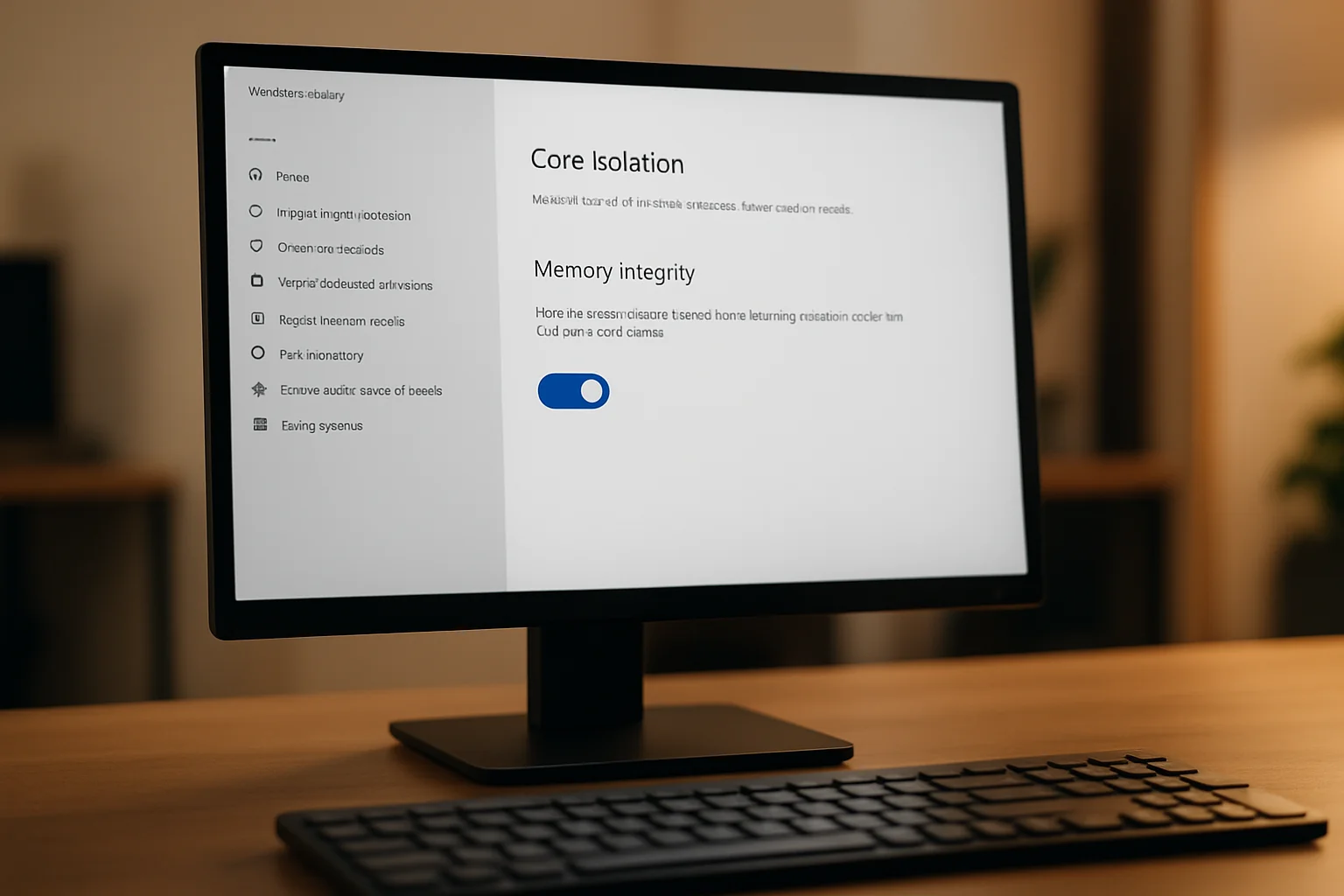

Memory Integrity is a built-in Windows protection that helps defend the operating system against malicious kernel code. It may already be enabled on your computer. Check its status in Windows Security, and resolve compatibility warnings before making changes.
What Memory Integrity protects
Memory Integrity, also called hypervisor-protected code integrity or HVCI, uses virtualization-based security to protect checks on code running in the Windows kernel. It appears within the broader Core isolation section; the two names are not interchangeable for every feature on that page.
Microsoft’s Device security guide describes how it makes it harder for malicious software to exploit low-level drivers. It does not replace antivirus, block every kind of malware or independently protect you against every password-stealing attack.
Why its status varies
It is inaccurate to assume that Microsoft leaves Memory Integrity off on most modern computers. Microsoft documents default enablement on compatible clean Windows 11 installations and Secured-core PCs. An upgraded system, incompatible driver, firmware setting or device-management policy can produce a different result.
A processor generation or the computer’s age alone does not settle compatibility. Hardware virtualization, firmware configuration, installed drivers and the Windows version matter. On a managed work or school computer, consult IT before changing its security settings.
Check and enable Memory Integrity
- Open Windows Security.Search for Windows Security in Start.
- Find the setting.Choose Device security, then Core isolation details, and check Memory integrity.
- Review the current status.If it is already on, leave it on. If it is off, review any warnings or management restrictions before proceeding.
- Enable it when compatible.Turn the setting on, save your work and restart if Windows requests it.
- Check after restarting.Return to the same page and confirm its status. Test any essential peripherals or applications.
See Microsoft’s enablement instructions for supported configurations. Do not change unrelated BIOS or security settings simply because a control is missing.
Handle incompatible drivers carefully
If Windows lists an incompatible driver, record its name and identify the device or application that uses it. Check Windows Update and the manufacturer’s official support site for a compatible replacement. Avoid unofficial driver bundles or deleting system files manually.
If no compatible driver exists, assess whether the device or application is still needed. Removing its properly identified software may be an option, but can stop that hardware from working. Do not disable a security feature permanently just to make an unknown download run.
Microsoft’s blocked-driver guidance explains the trade-off. When essential equipment or a managed computer is involved, get help deciding how to resolve the compatibility issue.
What about performance?
The effect depends on the processor, drivers and workload. This article does not promise a universal 1–3% slowdown or quote a percentage of all malware that Memory Integrity blocks. Those figures are not established by the sources cited here.
Keep protection enabled where the system supports it. If you notice a reproducible problem, record the application, symptoms and recent changes and investigate the cause. A general slow computer is not, by itself, evidence that Memory Integrity should be switched off.
Other security checks
- Use supported software.Keep Windows and applications updated. Check the support status of your Windows version instead of assuming a security toggle compensates for an unsupported operating system.
- Check antivirus and firewall status.Review Windows Security alerts and confirm that your chosen protection is active. Avoid competing real-time antivirus products.
- Keep independent backups.A separate, recoverable copy of important files remains necessary even when security features are enabled.
- Review ransomware protection carefully.Controlled folder access is another optional protection and may block legitimate applications. Understand its alerts and allow only apps you recognize and trust.
Microsoft Defender performs regular scans. If you need a custom schedule, Microsoft’s scheduled-scan instructions use Task Scheduler; Virus & threat protection is not a universal scheduling interface.
When to get help
Persistent compatibility warnings, crashes or a missing setting deserve investigation. Record the exact warning and recent changes rather than assuming every crash has the same cause. For a managed device, contact the organization’s IT team.
For a personal computer problem, review our repair services or request an appointment. Ask about the proposed work and estimate; this article does not guarantee compatibility, turnaround time or a particular performance result.
Frequently asked questions
Is Memory Integrity the same as antivirus?
No. It protects kernel code-integrity checks, while antivirus detects and responds to other threats. They serve complementary roles.
Is it always off by default?
No. Compatible clean Windows 11 installations and Secured-core PCs can have it enabled automatically. Check the actual status on your device.
Will Windows identify every future compatibility problem before I turn it on?
No universal guarantee is possible. Review warnings, use current vendor drivers and test essential software and devices after changes.
Can it be turned off?
Windows provides a toggle where policy allows it, but turning it off removes that protection. Prefer resolving the incompatible driver or software, and consult IT for a managed device.
Need Help with a Windows Security Problem?
For help with a computer problem, call Turlock Computer Repair at (209) 661-9171 or use the repair booking page.
Bottom line: Check the setting first, keep it enabled where supported and investigate driver conflicts carefully. Avoid treating one switch as complete protection.

Local, walk-in computer repair at Turlock Professional Park. Tune-ups, SSD upgrades, virus removal and cleanings for laptops, desktops, Macs and gaming PCs. (209) 661-9171


9 Responses