
Tech Tips From The Bench · PC Maintenance
Cordless Duster Guide: Safer PC Cleaning
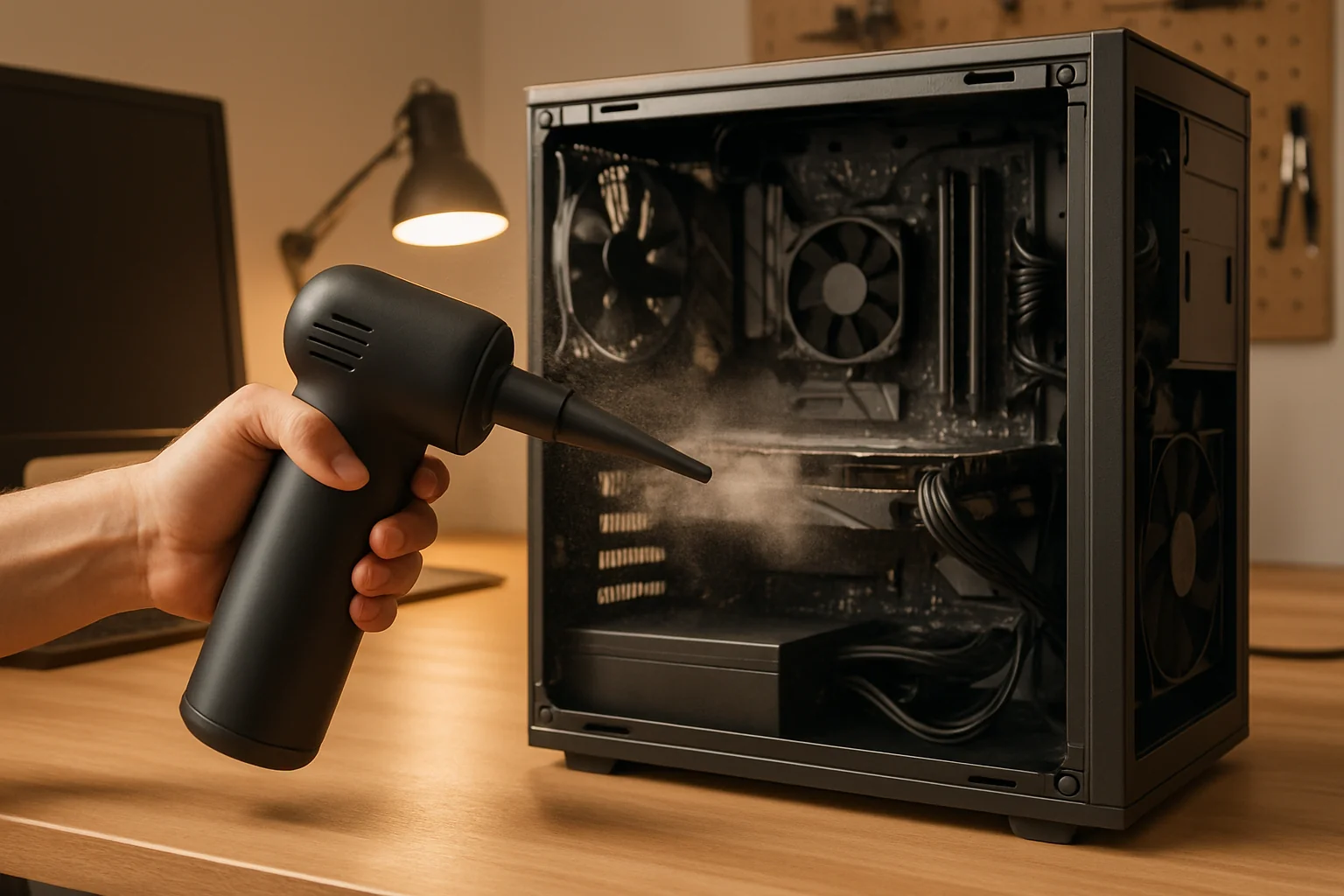

Illustrative image. Follow your device manufacturer’s instructions; the pictured tool and technique are not approved for every computer.
Dust can restrict cooling airflow, but cleaning tools are not interchangeable. Before using a cordless duster, check whether the computer manufacturer permits that equipment and method for the exact model. This guide explains the checks to make and when internal cleaning should be left to a technician.
Check the computer maker’s cleaning instructions first
A cordless duster moves air with an electric motor. Whether it is suitable depends on the computer, the cleaning task and the equipment’s documented precautions. A general electronics-marketing label does not establish approval for every internal component.
Dell’s cleaning guidance recommends compressed air and warns against ordinary blowers and vacuums because they can create static. Other equipment should be used only where the device maker’s instructions permit it. Check the manual before purchasing a tool.
- Check runtime and charging instructions.Battery-powered tools have a limited runtime. Follow the tool maker’s charging and operating requirements.
- Check airflow control.Airflow varies by design, nozzle, setting and battery condition. Excessive force can damage parts or move debris into inaccessible areas.
- Follow the tool’s precautions.A motorized tool avoids canned propellant, but that alone does not make it safe for a computer. Check static, moisture and airflow restrictions.
- Compare suitability before cost.Buy a tool only if it is appropriate for the intended device and task. Price alone does not establish safety or value.
When comparing equipment, consider how often it will actually be used, its battery and repair support, and disposal instructions. Avoid assuming a particular environmental saving without evidence.
How to Choose the Right Electric Duster
Check documented specifications and instructions for the exact tool. This guide does not claim hands-on testing or recommend a particular model.
Look for clear operating instructions, airflow control, permitted uses, static precautions and support. Motor RPM, battery capacity and price alone do not establish cleaning effectiveness or compatibility.
- Documented suitability.Confirm that both the computer and tool instructions permit the intended use. There is no universal safe or effective RPM threshold for PC cleaning.
- Runtime and cooling limits.Check the tool’s stated runtime, charging requirements and duty cycle. Follow any rest or cooling intervals in its instructions.
- Nozzles and control.Use only the permitted attachment and setting. A narrow nozzle can concentrate force; do not insert it among delicate components unless the instructions allow it.
- Vacuum mode is a separate question.A reversible tool is not automatically safe for internal electronics. Follow the computer maker’s guidance and avoid household-style vacuuming inside the device.
For advice about a particular computer, contact the shop with its model and symptoms. Ask what inspection or cleaning options are available and confirm the estimate before arranging work.
Plan a manufacturer-approved cleaning
Use the model’s service instructions rather than treating these checks as a universal disassembly guide. Stop if you cannot identify the access procedure, power-isolation steps or permitted cleaning method.
Work on a stable surface in a suitable, ventilated area. Gather only the tools allowed by the service instructions and follow the specified ESD precautions. Keep liquids and unapproved equipment away from internal components.
- Shut down and isolate power Disconnect power and peripherals. For a laptop, follow the exact service manual to remove, disconnect or disable its battery before internal work. Pressing the power button does not isolate a connected battery.
- Open only documented access panels Use the model’s procedure and protect fans as instructed. Avoid forcing clips, blades or connectors.
- Follow the approved method Clean only accessible areas the instructions permit. Do not open a power-supply enclosure or use airflow to force debris into hidden spaces.
- Do not chase hidden debris If a heatsink or fan requires removal, follow its service procedure or use a qualified technician. Do not scrape or probe circuitry.
- Clean permitted filters and vents Remove filters only as instructed. Wash them only if the manufacturer permits it, and refit them completely dry.
- Keep internal components dry Use a cloth on exterior surfaces only as the manufacturer directs. Do not apply a damp cloth to internal circuitry or spray liquid into the computer.
Access, condition and cleaning time vary by device. Inspect accessible areas periodically and follow the manufacturer’s maintenance guidance rather than a fixed universal interval.
Critical Safety Warnings and Mistakes
A cordless duster is not inherently safer than a compressed-air can. The permitted equipment and technique depend on the computer and task. Follow both manufacturers’ instructions and stop when the required precautions are unclear.
Avoid cleaning powered equipment, using unapproved tools or applying excessive force. If components look damaged or a battery is swollen, stop and arrange an appropriate professional assessment.
- Isolate power before cleaning.Shut down fully, disconnect cables and follow the model’s battery precautions before internal work.
- Protect fans as instructed.Do not force a fan to spin rapidly with airflow or push a tool blindly through a vent.
- Follow model-specific distances and settings.No single distance or power percentage is safe for every tool and component.
- Avoid forcing air or debris into delicate areas.Use only the direction and method allowed by the service instructions.
If you are unsure about opening the device, or notice a swollen battery, burn marks or damaged wiring, stop. Contact a qualified repair provider and describe what you found before using or transporting the equipment.
Special Considerations for Laptops
Laptop cooling layouts and service procedures differ. Small parts, batteries and nearby cables can make internal access difficult. An external vent does not establish a safe route to the fan or heatsink.
Use the exact laptop’s cleaning instructions for external vents. Do not assume that blowing through any intake or exhaust will safely remove internal buildup. Internal cleaning may require disassembly by a qualified technician.
- Do not rely on a generic power percentage.Use only equipment and settings permitted by the exact model’s instructions.
- Follow the documented cleaning direction.Airflow paths differ. Avoid pushing debris deeper or forcing inaccessible fans.
- Get help with uncertain internal access.Leave disassembly to a qualified technician if you cannot safely isolate the battery or follow the service procedure.
Dust buildup depends on the environment, airflow and use. Inspect the accessible areas and follow the manufacturer’s care guidance rather than assuming every gaming laptop needs the same schedule.
When to Clean and When to Get Help
Regular inspection can identify blocked vents or filters. Maintenance requirements vary with the device and environment; cleaning does not guarantee a particular hardware lifespan.
Check the manufacturer’s maintenance instructions and adjust inspections to visible buildup and operating conditions. Pets or dusty surroundings may justify more frequent checks.
- Investigate a change in behavior.Temperature changes can result from workload, room conditions, software or cooling faults. Compare like conditions and use supported diagnostics.
- Check unusual fan noise.Dust is one possible cause; wear and higher workloads can also affect noise.
- Inspect according to conditions.Use actual buildup and manufacturer guidance rather than a fixed interval for every gaming computer.
If the computer shuts down unexpectedly, displays visual artifacts or remains unusually hot, stop assuming cleaning will solve it. A technician can investigate cooling and other possible faults.
Packed or inaccessible buildup may require component removal. Do not scrape around circuitry or force debris out with excessive airflow.
Compare tools without a price-based safety shortcut
This guide does not rank specific models or claim comparative testing. Start with the cleaning method approved for the computer, then compare suitable tools and their documentation.
Check warranty and support, operating restrictions, attachments, airflow control and battery requirements. A more expensive tool is not automatically appropriate for internal electronics.
- Documented intended use.Confirm the exact permitted task and any restrictions on internal electronics.
- Clear operating instructions.Look for usable guidance on settings, distance, charging, maintenance and duty cycle.
- Support and repair options.Check warranty coverage, replacement parts and battery disposal instructions. Additional modes do not establish computer compatibility.
Reviews may provide useful context, but they cannot override the computer manufacturer’s instructions or establish a tool’s ESD suitability. If the documentation is unclear, use the supported method or get professional advice.
Spend on equipment only after confirming that it suits the task. There is no fixed temperature drop, performance gain or repair-cost saving that a duster can guarantee.
Frequently asked questions
Can I use a cordless duster on a laptop without opening it?
Only if the laptop manufacturer permits that equipment and method for the exact model. Follow its external-vent instructions; do not insert a nozzle or force inaccessible fans. Ask a technician about persistent symptoms.
How often should I inspect or clean my PC?
Follow manufacturer guidance and actual dust buildup. Environmental conditions can justify more frequent inspections, but there is no universal interval for every computer.
Are cordless electric dusters safe for all computer components?
No universal assurance is possible. Dell recommends compressed air and warns against ordinary blowers and vacuums because of static. Use only the exact computer’s permitted method and equipment, with proper power isolation and fan precautions.
When should I get professional help?
Get help when safe battery isolation or access is unclear, parts appear damaged, or the computer continues to overheat or shut down. Diagnosis determines whether cleaning or another repair is appropriate.
Need Professional PC Cleaning in Turlock?
For questions about a computer that is hot, noisy or dusty, call (209) 661-9171 or use the repair booking page. Ask the shop about inspection options, estimates and availability.
Bottom line: Follow the computer manufacturer’s cleaning instructions. A cordless duster is suitable only when the equipment and method are approved for the task; persistent symptoms need diagnosis.

For computer repair questions in Turlock, call (209) 661-9171 or use the repair booking page. Ask the shop about available services, estimates and timing.



3 Responses