Tech Tips From The Bench · Mobile Device Maintenance
Samsung Battery Settings: Protection, Power Saving and Notifications

Galaxy phones include settings that can help manage battery use and long-term wear. Availability and menu names depend on the model and One UI version. Review the trade-offs, especially notification and connectivity changes, before enabling automation.
Why Samsung Battery Routines Actually Matter
Keeping a lithium-ion battery at full charge for long periods can contribute to wear. Samsung’s Battery protection options can limit charging or adjust overnight charging, but they do not prevent every battery problem.
This guide covers battery settings rather than phone repair. Use Samsung’s support instructions for your exact model and software version, and contact an appropriate repair provider for hardware concerns.
Battery protection, power-saving controls and app restrictions serve different purposes. A lower charge limit may reduce long-term wear while also leaving less capacity available for the day.
- Consider a charge limit.A lower maximum charge may reduce long-term battery wear, but the benefit varies by device, temperature and usage.
- Pay attention to heat.Do not rely on a routine to manage overheating. Follow Samsung’s charging and temperature guidance.
- Review background activity.Restricting background activity can save power, but it may delay or stop notifications and other app functions.
- Match your actual usage.Supported overnight charging options use your usage or sleep pattern; availability and effectiveness vary.
Setting #1: Review Battery Protection
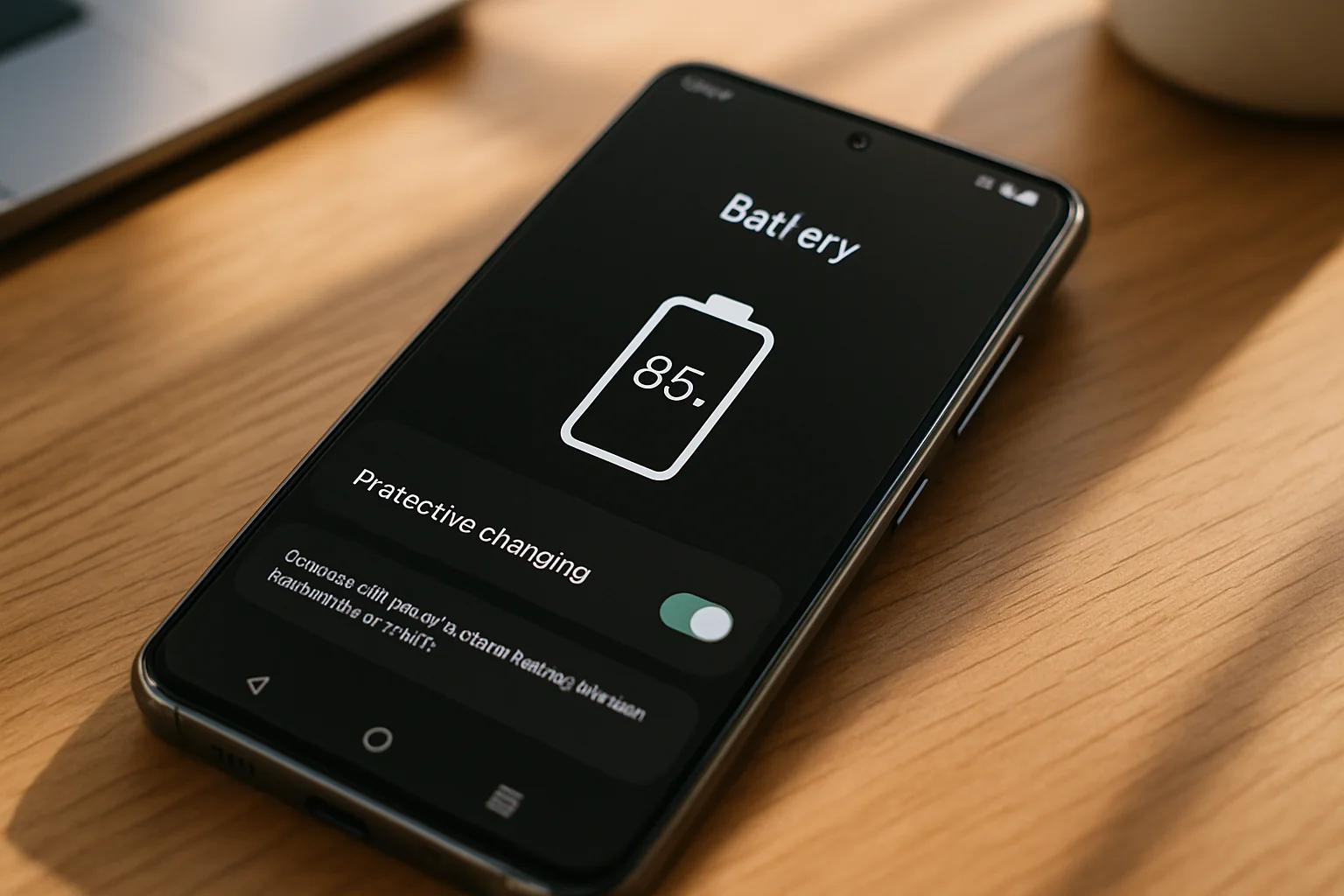
Battery protection limits or adjusts charging. Older versions use an 85% cap; One UI 6.1 introduced Basic, Adaptive and Maximum modes, with Maximum stopping at 80%. Newer versions may offer selectable limits or different controls.
Choose a setting that fits your routine. If you need maximum daily runtime, a lower charge limit may be inconvenient; it is a choice, not a universal requirement.
- Find your Battery settingsOn One UI 6.1, open Settings > Battery. On older versions, look under Battery and device care.
- Open Battery protectionOn One UI 6.1, tap Battery protection. Older versions may place Protect battery under More battery settings.
- Choose the available modeRead the displayed charge limit and choose a mode that suits your needs. You can change or disable protection later.
A charging cap leaves less energy available before you unplug. It may help reduce long-term wear, but no fixed lifespan improvement is guaranteed.
Setting #2: Check Overnight Charging Options
On supported One UI 6.1 devices, Adaptive battery protection uses Maximum mode during estimated sleep and switches to Basic before waking. It is different from Adaptive battery, which manages app power use.
Newer interfaces may offer Sleep time protection within Basic mode. Use the labels on your own device and Samsung’s matching support instructions rather than assuming the menus are identical.
- Access protection settingsOn One UI 6.1, go to Settings > Battery > Battery protection.
- Select the supported overnight optionOn One UI 6.1, choose Adaptive. On newer models, check whether Basic offers Sleep time protection.
- Check how it behavesUse your device normally and review charging behavior. Do not assume a fixed learning period or exact wake-up completion time.
The goal is to reduce time spent fully charged overnight while allowing more charge near waking. Results depend on your pattern and software version; verify that the setting fits your needs.
Setting #3: Test Power-Saving Routines
On supported devices, Modes and Routines can automate available actions using conditions such as battery level. Older software may use the Bixby Routines name; check which triggers and actions your phone offers.
Power saving can reduce performance and background activity. Test a routine and make sure important apps and notifications still work as you expect.
- Open Modes and RoutinesGo to Settings > Modes and Routines > Routines tab at the bottom.
- Tap the plus icon to createChoose “Add routine” and select “Battery level” as your IF trigger.
- Set battery thresholdSet it to activate when battery drops to 30% or your preferred level.
- Choose THEN actionsChoose Power saving if it is available. Review its displayed restrictions; other actions and network controls vary by model and carrier.
- Name and saveGive it a clear name like “Auto Power Save” and toggle it on.
Start with a simple battery-level trigger and review what happens when the routine ends. Add other available conditions only after checking their effect on important apps.
Setting #4: Review App Sleeping Limits
Background activity is useful for messages, alerts, navigation and sync. Restrict only apps whose background functions you do not need, and check battery usage before changing them.
Deep sleeping is a strong restriction: affected apps cannot perform background activities, including notifications, until you open them. It is not appropriate for every app.
- Navigate to BatteryOpen Settings > Battery, or Battery and device care > Battery on older versions.
- Tap Background usage limitsThis shows your sleeping app categories.
- Add apps to Deep sleepingOpen “Deep sleeping apps” and select only apps whose background activity and notifications you can safely forgo.
- Review automatic sleepingRead the “Put unused apps to sleep” setting and review affected apps. Keep notification-critical apps out of sleeping restrictions.
Deep-sleeping apps work when opened but cannot perform normal background activities while inactive. Do not assume that important notifications will automatically bypass this restriction.
Setting #5: Check Connectivity Trade-Offs
Connectivity changes have trade-offs. Turning off Bluetooth can disconnect accessories, while disabling location can affect navigation and location-dependent features. Only automate changes whose consequences you understand.
Weak signal and changing network conditions can affect battery use, but switching off a radio is not a universal fix. Keep the connections you need for calls, alerts and essential accessories available.
- Review your connectionsIdentify which connections are required by your calls, alerts and accessories before creating a routine.
- Check available actionsIf you use Modes and Routines, read each supported action and its effect. Controls vary by software and model.
- Test one change at a timeVerify calls, alerts and connected accessories after the change, and restore the setting if anything important stops working.
- Review how the routine endsConfirm whether the original setting is restored automatically or needs to be restored manually.
Avoid automatic overnight airplane mode if you need to remain reachable. It disables cellular connectivity and may prevent incoming calls and wireless emergency alerts; do not trade essential communications for a claimed battery saving.
For model-specific setup help, use Samsung’s official support instructions. If you contact a local repair business, confirm that it supports your phone and ask about service availability and cost before visiting.
How to Monitor Your Battery Health
After changing a setting, compare battery use under similar conditions and check that essential app functions still work. Battery screens and diagnostic options vary by device and software version.
- Check battery usage graph.Review the usage information available under Settings > Battery. A spike may reflect ordinary use, not necessarily a faulty app.
- Review app power consumption.Open the available app-usage details and compare them with how you used the phone.
- Monitor charging speed.Charging estimates can vary with the charger, temperature, battery level and phone use. A changing estimate alone does not identify a cable or port fault.
- Track battery life trends.Samsung Members may offer a battery-status diagnostic on supported devices. Record results if useful; do not assume the app provides a long-term health history.
There is no guaranteed percentage improvement or waiting period. Daily runtime depends on signal, apps, temperature, screen use, battery condition and any charge limit you choose.
If rapid drain, overheating or charging problems persist, follow Samsung’s diagnostic guidance or consult a qualified phone repair provider. Software settings cannot resolve every battery or charging fault.
A trade-off with daily capacity
Check notification effects
Verify important functions
Menus and options vary
Frequently asked questions
Can a charge limit help battery longevity?
A lower charge limit can reduce time spent at high charge and may reduce long-term wear, but it does not guarantee a particular lifespan increase. The limit and available modes vary by One UI version, and a lower cap reduces energy available for the day.
Can I temporarily disable Protect Battery when I need a full charge?
On supported devices, open Battery protection and change or turn off the current limit using the options shown. Menu locations vary; remember to restore your preferred protection setting afterward if you want it enabled.
Do these Samsung battery routines work on older Galaxy phones?
Availability depends on the exact model and One UI version. Older Protect battery controls differ from the Battery protection modes introduced in One UI 6.1 and from newer interfaces. Check Settings > About phone > Software information and use matching Samsung instructions.
Why is my battery still draining fast after setting up these routines?
Review battery usage, signal conditions, recent app changes and temperature. Confirm that settings have not restricted essential apps. Persistent overheating or charging problems need appropriate diagnosis; no routine has a guaranteed learning period or ability to repair worn hardware.
Battery Still Acting Up After Setting Routines?
For battery or charging faults, contact Samsung support or a qualified phone repair provider. For questions about services available at Turlock Computer Repair, call (209) 661-9171 before visiting. Our computer repair shop is at 2101 Geer Road, Mon–Sat 9 AM–6 PM.
Bottom line: Choose supported battery settings carefully, understand their trade-offs and test the functions you rely on. Results vary by model, software and usage.

Local, walk-in computer repair at Turlock Professional Park. Tune-ups, SSD upgrades, virus removal and cleanings for laptops, desktops, Macs and gaming PCs — contact us for a quote and current turnaround. (209) 661-9171