Tech Tips From The Bench · Security Alerts
Fake ChatGPT Downloads: How to Spot Malware Scams
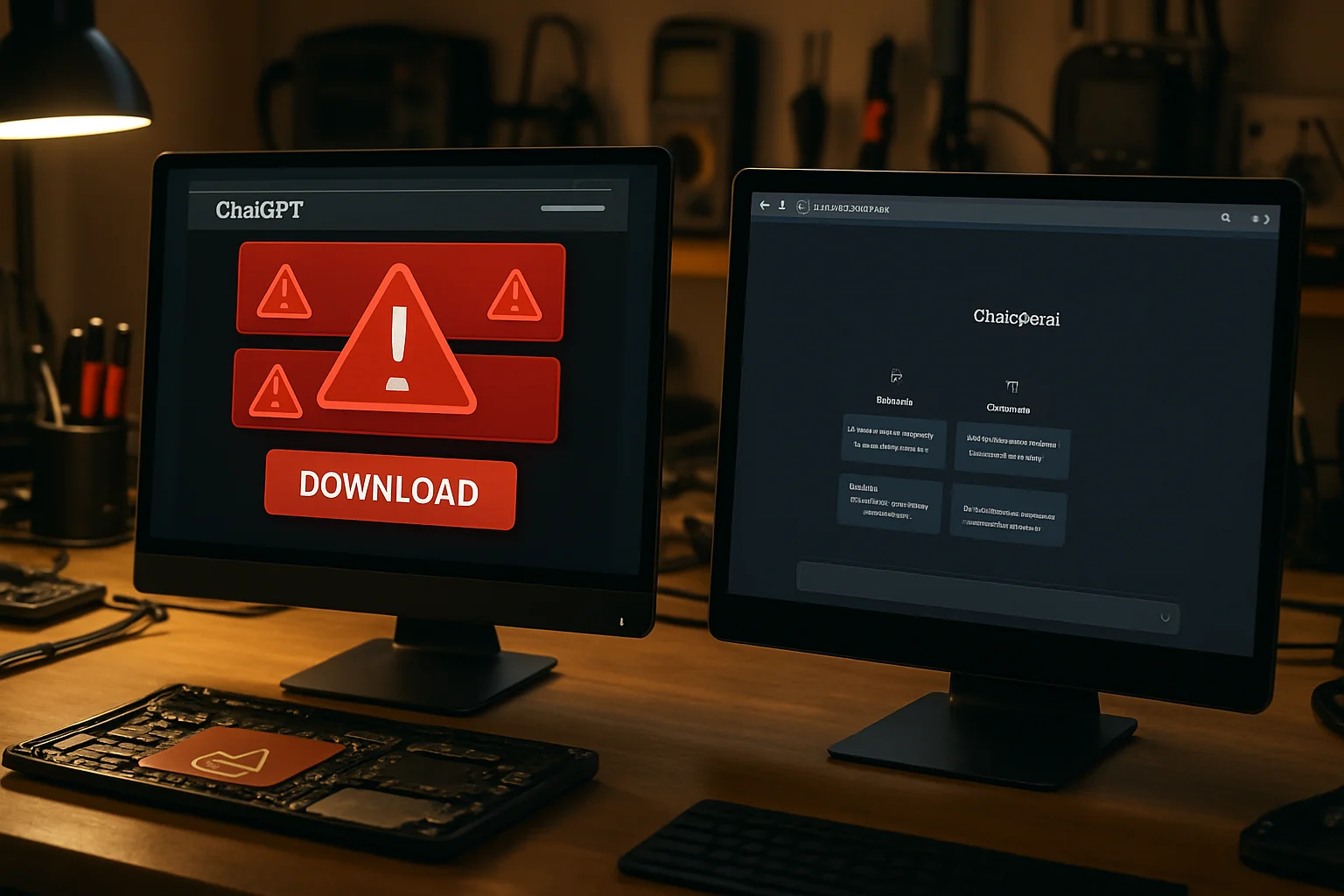

Scammers can use familiar AI branding to promote malicious downloads or instructions. The important distinction is where an installer comes from and what it asks you to do: official ChatGPT desktop apps exist, but lookalike websites and misleading ads can still put your computer at risk.
How the ChatGPT Scam Actually Works
The scam starts with what looks like a legitimate way to get ChatGPT on your desktop. Scammers create fake websites, social media ads, and even sponsored search results that promise “official” ChatGPT desktop apps for Windows or Mac. These sites mimic OpenAI’s branding so convincingly that even tech-savvy users can be fooled.
When you download and run what you think is ChatGPT, you’re actually installing information-stealing malware. These programs can capture your passwords, credit card numbers, cryptocurrency wallets, and personal files. Some variants also install ransomware or turn your computer into part of a botnet.
Some attacks use fake verification screens instead of a conventional download button. Huntress documented a September 2026 campaign in which attacker-created Custom GPTs redirected people to a fake verification page and persuaded them to run commands that installed malware. Do not paste commands into Run, PowerShell or Terminal to prove you are human.
Red Flags That Scream Fake Download
Before downloading software, check the source and the actions requested. No single clue, including file size or a familiar logo, proves that an installer is safe.
- An unexpected download or verification destination.Start at chatgpt.com/download and follow its official links. Be suspicious of lookalike domains and requests to move to a supposed backup site. Content hosted on a familiar platform is not automatically trustworthy.
- You’re asked to disable antivirus software.A download that asks you to disable protection, ignore security warnings or add exclusions deserves scrutiny. Stop and verify through the software maker’s official support channels.
- A prompt asks you to run a command.Do not paste commands into a system terminal or the Windows Run dialog to complete a CAPTCHA, repair access or unlock an AI service. File size is not a reliable safety test.
- No digital signature verification.An unexpected publisher or operating-system warning is a reason to stop. Even a signed file is not proof that an entire installation chain is safe; verify the download through the official site.
- Pressure tactics in the marketing.Fake sites often claim “limited time offer,” “exclusive desktop version,” or “premium features unlocked” to rush your decision.
If you downloaded a suspicious file but have not opened it, do not run it. Use your security software to scan the file, and delete or quarantine it if flagged.
Possible Signs of Malware Infection
These symptoms can have causes other than malware, and some infections produce no obvious symptoms. Treat them as reasons to investigate, not as proof of a particular scam.
- Sudden performance slowdown.Malware consumes system resources, making your computer sluggish even with few programs open.
- Browser redirects and pop-ups.Your web searches get redirected to strange sites, or you see an explosion of ads even on sites that normally don’t have them.
- Antivirus software disabled or removed.The malware often tries to protect itself by shutting down or uninstalling your security software.
- Unknown programs in your startup list.Check Task Manager (Ctrl+Shift+Esc) for unfamiliar processes running in the background, especially ones with random letter combinations.
- Unexpected account activity.You receive password reset emails you didn’t request, or notice unauthorized purchases on your credit cards.
Time is critical with information-stealing malware. The longer it runs, the more data it can harvest and send to the criminals behind it.
What to Do If You've Been Tricked
Discovered you’ve fallen for the scam? Don’t panic, but do act quickly. Here’s exactly what to do in the first hour after realizing you’ve installed malicious software.
- Disconnect from the internet immediately.Unplug your ethernet cable or turn off Wi-Fi to prevent the malware from sending your data or downloading additional threats.
- Don’t try to log into any accounts.The malware may be recording your keystrokes, so typing passwords right now could compromise those accounts even further.
- Use a different device to change passwords.From your phone or another computer, change passwords for your email, banking, and any accounts you’ve accessed recently.
- Enable two-factor authentication everywhere.This adds a second layer of protection even if the criminals have your passwords.
- Check your financial accounts.Look for unauthorized transactions and alert your bank or credit card companies if you spot anything suspicious.
- Get professional malware removal.Run an up-to-date security scan and seek qualified help if threats persist or sensitive accounts may be affected. Some cases may require a clean operating-system installation; no quick scan guarantees that stolen information is safe.
Changing a password does not always invalidate every existing session. From a trusted device, review signed-in sessions, revoke unfamiliar access and check account recovery settings as well.
The Right Way to Use ChatGPT Safely
Here’s the irony: ChatGPT is actually safe and useful when you access it the correct way. Let’s clear up the confusion about legitimate versus fake access methods.
You can use ChatGPT in a browser at chatgpt.com, or get official desktop and mobile apps through OpenAI’s download page. Installation is optional for browser use. Follow the official links rather than downloading an installer from an ad or unfamiliar site.
For mobile apps, follow the links from the official download page to the relevant app store and verify the developer. An app-store listing with a similar name or logo is not enough on its own.
If you are uncertain about a download, stop before running it. Verify it with the vendor’s official website or support resources, and contact the shop if you need help assessing a computer problem.
Long-Term Protection Strategies
Beyond this specific ChatGPT scam malware threat, these habits will protect you from the next wave of AI-related scams that are inevitably coming.
- Question every download prompt.Before clicking any download button, ask yourself if you really need software installed or if a web-based version exists.
- Verify through official channels.When you hear about a new tool or app, go directly to the company’s official website by typing the URL yourself, not by clicking ads or links.
- Keep your security software current.Quality antivirus programs update their threat databases constantly to recognize new malware variants, but only if you let them update.
- Use browser-based security features.Modern browsers like Chrome, Firefox, and Edge warn you about dangerous download sites if you have their protection features enabled.
- Educate your family members.Anyone can encounter these scams. Share the warning signs with the people who use your household computers.
The Central Valley isn’t immune to these threats. Scammers don’t discriminate by location—they target anyone interested in popular technology like ChatGPT, and that includes plenty of folks right here in Turlock.
Professional Malware Removal in Turlock
Windows includes Microsoft Defender Antivirus and an offline scan option. These tools can detect and remove threats, although a persistent or complex infection may need additional investigation. Microsoft’s malware guidance describes available scan options.
A careful assessment may examine installed software, browser extensions, startup items and security alerts. If account information may have been stolen, protecting those accounts is a separate task from removing software from the computer.
Use a known-clean device for password changes and account recovery. Avoid sharing passwords with a repair provider; ask how the work will be scoped and how your data will be handled.
For help with a suspected infection, call Turlock Computer Repair at (209) 661-9171. Ask about the diagnostic process, estimated cost and timing before arranging service.
Official download source
Suspicious instructions
Accounts from a clean device
Investigate suspected malware
Frequently asked questions
Is there an official ChatGPT desktop app I can download?
Yes. OpenAI offers official desktop apps for Windows and macOS, as well as mobile apps. Use https://chatgpt.com/download/ to find the official download links and current system requirements. You can also use ChatGPT in a browser without installing an app.
How much does professional malware removal cost in Turlock?
Cost depends on the system, the infection and the work needed. Contact Turlock Computer Repair for a diagnosis and an estimate before authorizing repair. This article does not quote a fixed price or turnaround time.
Can I remove this malware myself with free antivirus software?
Built-in and other reputable security tools can detect and remove many threats. Microsoft Defender also offers an offline scan. If a threat persists, security tools fail to run or sensitive accounts may be compromised, get a qualified assessment. Malware removal cannot undo information that has already been stolen.
How can I tell if a ChatGPT-related download is legitimate?
Start at https://chatgpt.com/download/ and follow the official links. Official desktop apps are legitimate; unexpected downloads from ads, backup domains or verification prompts need scrutiny. Do not disable protection or run commands to prove you are human. A familiar logo, file size or digital signature alone does not establish safety.
Suspect You've Downloaded Fake ChatGPT?
For help with a computer problem, call Turlock Computer Repair at (209) 661-9171 or use the repair booking page.
Bottom line: The ChatGPT scam malware is sophisticated, but recognizing the warning signs and knowing where to get help keeps you safe in Turlock’s growing AI landscape.

Local, walk-in computer repair at Turlock Professional Park. Tune-ups, SSD upgrades, virus removal and cleanings for laptops, desktops, Macs and gaming PCs. (209) 661-9171