
Tech Tips From The Bench · Maintenance
How to clean dust out of a computer safely
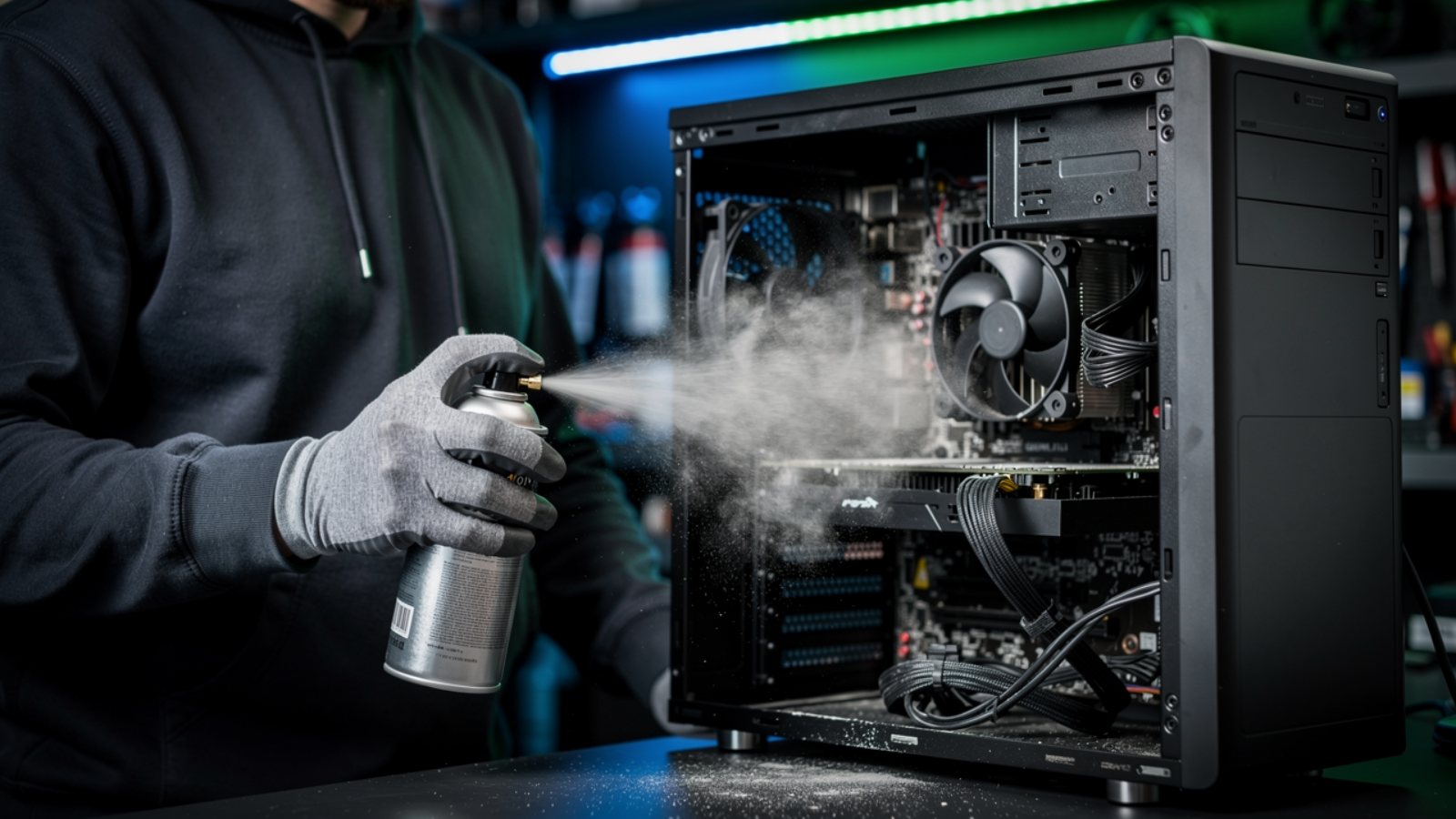

Dust can restrict airflow and contribute to overheating. Loud fans, a hot case or slowdowns can also have other causes. This guide covers basic cleaning precautions, what cleaning may help and when to stop and get the device assessed.
Illustrative airflow and temperature comparison
What dust actually does inside your computer
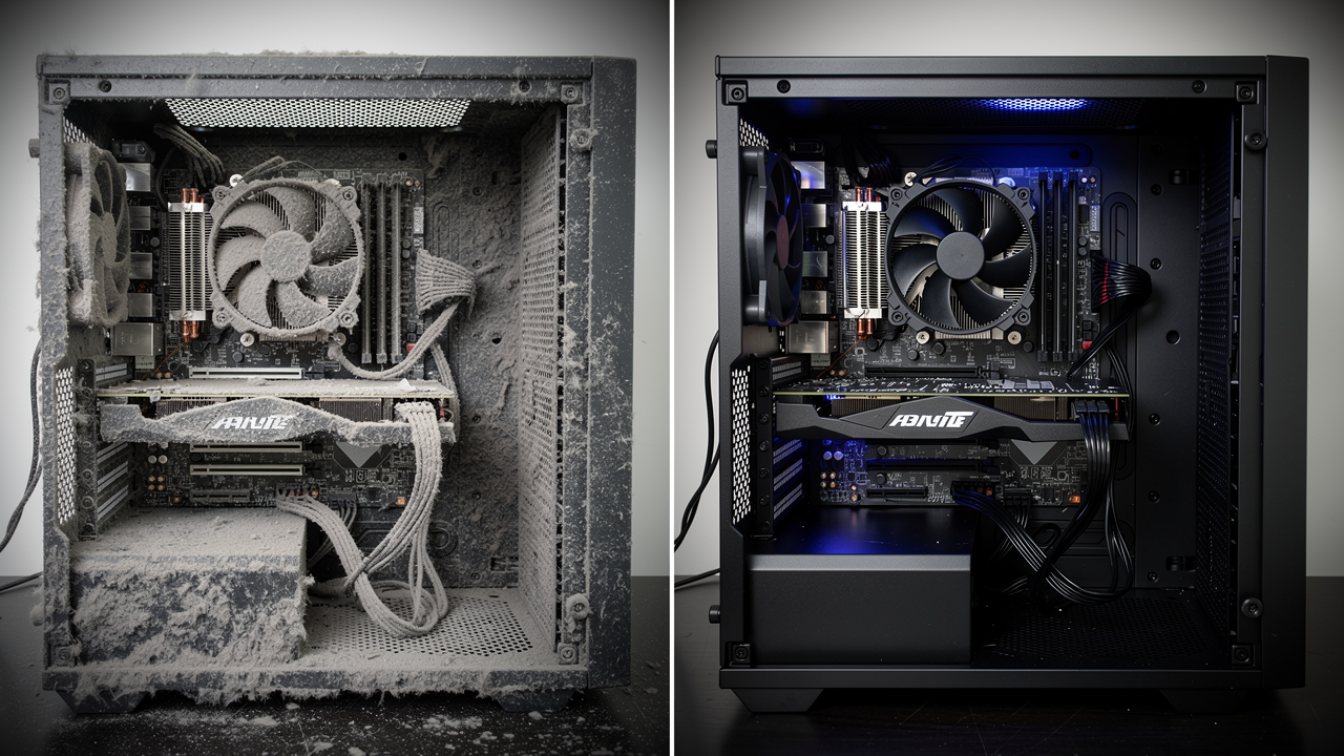
Cooling fans move air through parts of the computer. Dust can collect on filters, vents, fans and heatsinks, reducing airflow. The pattern and rate of buildup vary with the device and its environment.
After a year or two, that layer becomes a felt-like blanket. Air can’t get through, the heatsink can’t shed heat, and the chip climbs toward its limit. When it gets there, it does the only thing it can: it slows itself down. That’s called thermal throttling, and it is why a “slow computer” is often just a hot one.

What happens when you clean dust out of a computer? The real benefits
Cleaning can help when dust is restricting airflow. It does not add processing power or fix every cooling problem. Compare behavior under similar conditions rather than expecting a fixed temperature or speed improvement.
- Clear airflow can help reduce temperatures.The improvement depends on the device, dust buildup and cooling system. Cleaning may help when blocked airflow causes overheating, but it cannot fix every cooling fault.
- Performance may recover.If blocked airflow was causing thermal throttling, cleaning may help. Other limits or faults can remain.
- Fan noise may change.Improved cooling can reduce fan demand, but noise may also come from fan wear or other hardware.
- Maintain the cooling system.Keeping airflow clear supports normal operation. No cleaning schedule guarantees a particular hardware lifespan.
- Investigate shutdowns.Overheating can cause instability, but crashes and restarts also have other causes. Repeated unexpected shutdowns need diagnosis.
- Check before replacing parts.Inspection can help establish whether cleaning, another repair or a replacement is appropriate.
Check accessible vents and filters using the model’s care instructions.
Check operation. Persistent heat, noise or shutdowns need diagnosis.
Signs it is time to clean dust out of a computer (yours)
- Fans are louder than expectedCheck workload, ventilation and the model’s cooling behavior. Dust is one possible cause.
- The case feels unusually hotStop using it if it seems unsafe. Surface temperature alone does not identify the underlying fault.
- Performance changes as it warms upRecord the workload and symptoms. A technician can check whether throttling or another problem is involved.
- It shuts off or restarts unexpectedlyStop repeatedly forcing it to run and seek diagnosis. Cooling is one of several possible causes.
- Visible dust on vents or filtersFollow the manufacturer’s instructions to clean accessible areas safely.
- Maintenance history is unknownInspect accessible vents and review the model’s care instructions. Age alone does not establish a cleaning interval.
How often should you clean the dust out?
Inspect accessible vents and filters periodically. Follow the manufacturer’s maintenance guidance and adjust checks to actual dust buildup, pets and the working environment. The table below describes considerations rather than guaranteed service intervals.
| Your setup | Desktop | Laptop |
|---|---|---|
| Clean office, desk-height, no pets | Inspect for buildup | Follow model guidance |
| Typical home, carpet, windows open in summer | Inspect for buildup | Inspect for buildup |
| Pets, smokers, or PC on the floor | Check more frequently if dusty | Inspect for buildup |
| Gaming PC / used 6+ hours a day | Check more frequently if dusty | Inspect; assess cooling if symptoms persist |
| Shop, garage, farm office | Check more frequently if dusty | Check more frequently if dusty |
What you need to clean dust out of a computer (and what to skip)
- Manufacturer-approved cleaning equipmentCheck the exact device’s guidance. Dell recommends compressed air and warns against ordinary blowers and vacuums because of static. Do not assume an electric duster is approved for every computer.
- Only tools approved for the taskUse an ESD-appropriate brush only if the service instructions permit it. An ordinary paintbrush is not automatically antistatic.
- The exact tools specified in the service manualFasteners and access methods differ. Do not force a cover or use an unsuitable screwdriver.
- Fan precautionsFollow the model’s instructions to avoid overspeeding or damaging fans. Do not force blades or insert tools blindly through vents.
- A garage, patio or open windowYou are about to release a lot of dust. Don’t do it over the carpet.
- Avoid household vacuums and ordinary blowersThey can create static. Keep unapproved equipment away from internal components.
How to clean dust out of a computer: desktop PC steps
For a desktop, start with the exact model’s cleaning and service instructions. If opening the case is not supported or you are unsure how to isolate power safely, use external cleaning only and get help.
- Shut down and isolate power Shut down fully, unplug the computer and peripherals, and follow the service manual’s battery and residual-power precautions. Never open a power-supply enclosure.
- Open only an approved access panel Follow the service manual on a stable work surface. Avoid touching circuitry and follow the specified ESD precautions.
- Clean accessible vents and filters Use only the method approved for the device. Follow the compressed-air product’s directions and keep liquid propellant away from components.
- Protect fans Follow the model’s fan-cleaning instructions. Do not use airflow to force a fan to spin rapidly.
- Avoid forcing debris deeper Work only on accessible areas the manual permits. Do not scrape circuitry or disturb cables and connectors to reach hidden dust.
- Clean filters separately when permitted Wash a removable filter only if its manufacturer allows it. Refit it only when completely dry.
- Reassemble and check operation Confirm covers, cables and fans are correctly restored. Use the manufacturer’s supported diagnostics where available; temperature limits depend on the exact components.
How to clean dust out of a computer: laptop steps
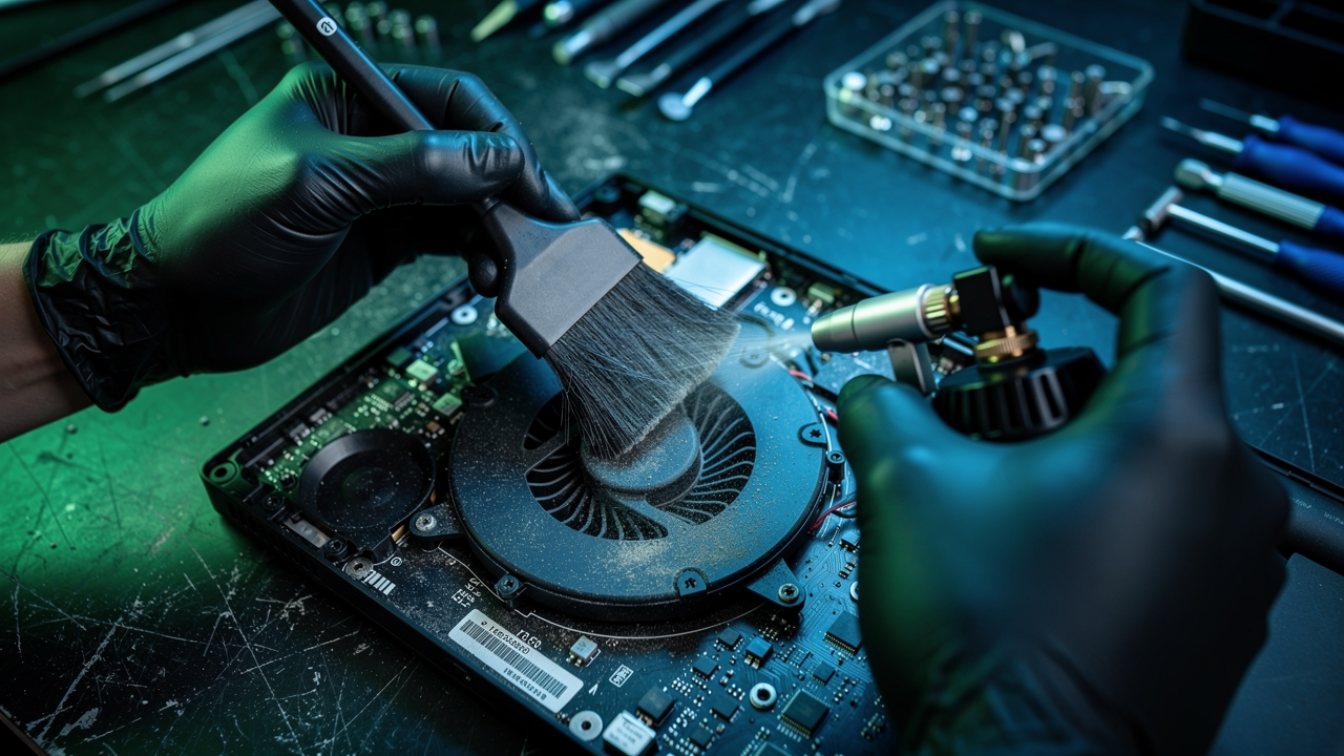
Laptop layouts vary, and air blown into a vent can move debris where you cannot see it. Use the exact model’s care and service instructions. Stop before disassembly if you cannot safely isolate the battery or identify the access procedure.
- Shut down, unplug, remove the battery if it is removableFor an internal battery, follow the exact model’s service manual to disconnect or disable it before touching components. Holding the power button does not isolate a connected battery. If unsure, leave internal cleaning to a technician.
- Follow the model’s access procedure Some laptops require special tools or additional steps. Keep screw positions organized and stop if a cover does not release as documented.
- Protect the cooling assembly Follow the manufacturer’s instructions. Avoid forcing fan blades, moving wiring or dislodging connectors.
- Use the approved cleaning direction and method Follow the model’s instructions rather than assuming the same airflow direction works for every laptop.
- Leave inaccessible buildup to a technician Do not scrape components or insert tweezers into an assembled laptop. Removal of the cooling assembly may require additional service steps.
- Reassemble and test Confirm the device operates normally under a familiar workload. Quieter operation alone does not prove the cooling fault is resolved.
5 ways people break computers when they clean dust out of a computer
- Forcing fans with an air blastFollow the model’s fan precautions and avoid overspeeding or physically damaging the fan.
- Ignoring the air-can instructionsIncorrect use may release liquid propellant. Follow the product’s orientation and distance instructions.
- Using unapproved cleaning equipmentHousehold vacuums and ordinary blowers can create static and damage components.
- Using a wet cloth or household cleaner insideKeep liquids away from internal components. Use only the cleaning tools and methods approved for your exact device.
- Assuming every hot computer needs thermal pastePersistent heat can have several causes. Diagnose the cooling system; replace thermal materials when the service procedure or diagnosis calls for it.
Does your computer need a dust cleaning? Check what applies.
When to bring it in instead
Ask a qualified technician when safe access is unclear, damage is visible or symptoms continue after approved basic maintenance. Confirm the proposed assessment and estimate before arranging work.
- Internal access is difficultModel-specific disassembly can put cables, batteries and other parts at risk. Ask a qualified technician when you are unsure.
- Symptoms persist after cleaningFurther diagnosis can check fans, airflow, thermal contact, workloads and other possible causes.
- It shuts off unexpectedlyStop repeatedly forcing it to operate and have the cause assessed.
- Ask how the repair will be checkedRequest an explanation of the fault, proposed work and how operation will be verified.
Contact the shop to ask whether cleaning is appropriate for your computer, what the inspection includes and how much it will cost. Confirm availability and timing before arranging a visit.
Frequently asked questions
Can dust cleaning improve computer performance?
It can help when blocked airflow causes overheating or throttling. Results vary, and cleaning cannot fix every performance or cooling problem.
How often should I clean my computer?
Follow the manufacturer’s guidance and inspect accessible vents and filters for buildup. Dusty environments may need more frequent attention; use the device’s condition rather than a universal calendar interval.
Can I use a vacuum cleaner inside a computer?
Avoid household vacuums and ordinary blowers inside computers. Dell warns that they can create static. Use the exact model’s approved cleaning method and equipment.
Is compressed air safe for my computer?
Use it only where the computer manufacturer permits it and follow the air-can instructions. Shut down and isolate power first, protect fans and avoid liquid propellant or excessive force.
How much does professional computer cleaning cost?
Ask the shop for an estimate based on the exact device, access requirements and condition. Confirm what is included and whether additional work needs approval.
What if my laptop is still hot after cleaning?
Stop assuming dust is the only cause. A technician can assess the cooling system, workload and other possible faults. Thermal paste replacement is not an automatic requirement based only on age.
Loud fans or a hot laptop? Ask about an inspection.
Call the shop to discuss your computer, the symptoms and available appointment options.
Bottom line: Inspect and maintain your computer using the manufacturer’s instructions. Cleaning can help with blocked airflow, but persistent symptoms need diagnosis.
For computer repair questions in Turlock, call (209) 661-9171 or use the repair booking page. Ask the shop about available services, estimates and timing.
One Response