
Tech Tips From The Bench · Networking
Why Your Wi-Fi Is Slow: Channel Congestion Explained
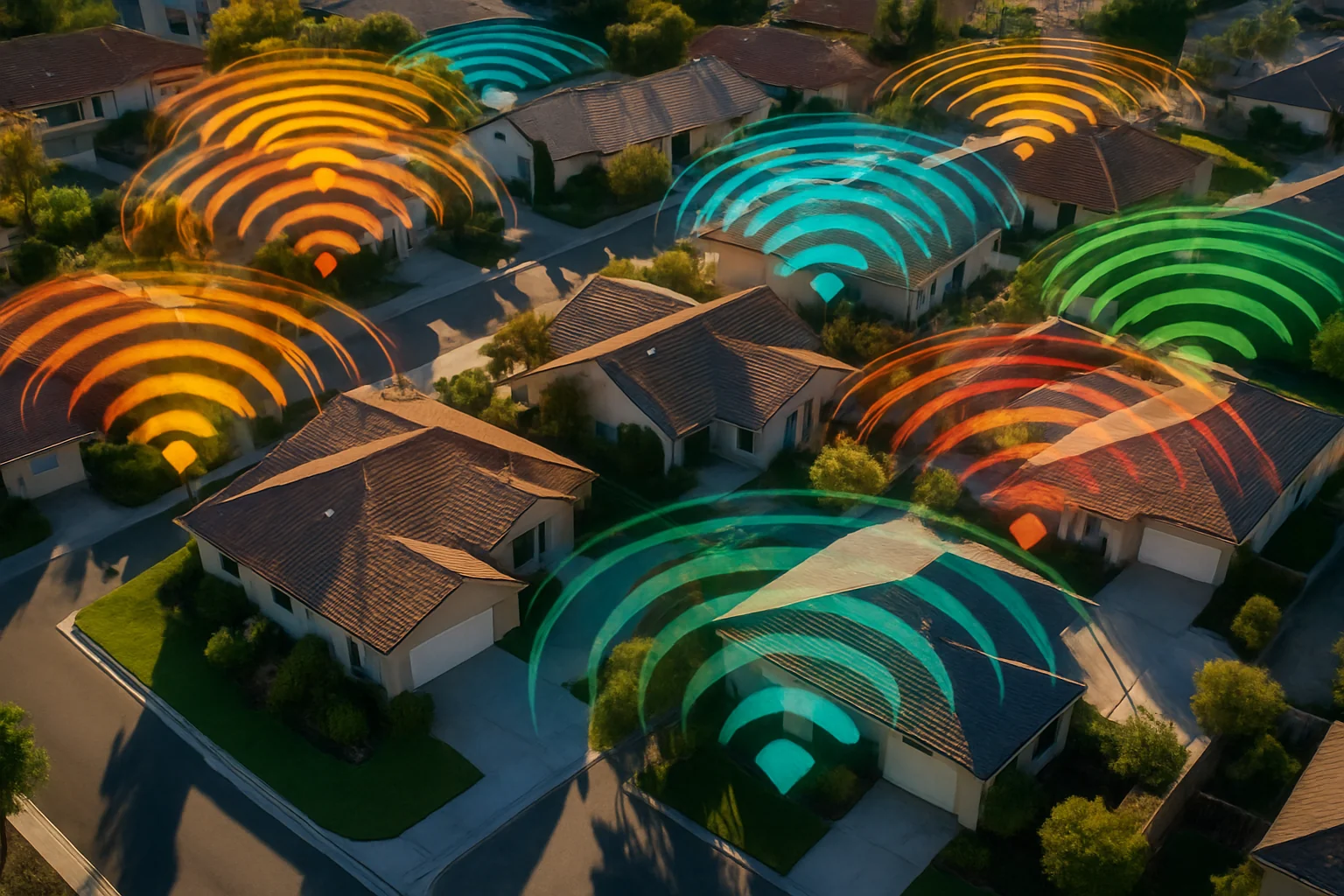
Slow Wi-Fi in the evenings? Channel congestion is one possible cause, alongside weak coverage, busy devices and problems with the internet connection. Here’s how to compare them before paying for an upgrade.
When Wi-Fi slows down, compare more than one device and connection method. A wired test can help separate a wireless problem from an internet-service or device problem; evening timing alone does not identify the cause.
Wi-Fi channel congestion: the highway analogy
Your router broadcasts on specific channels — think of them as lanes on a highway. In the 2.4 GHz band there are 11 channels in the US, with 1, 6 and 11 commonly used as non-overlapping choices at 20 MHz width. The 5 GHz band has far more clean lanes, but not every older phone, tablet or laptop supports it.
Most routers offer automatic channel selection. Start with auto, as recommended in Apple’s Wi-Fi router settings guide; if performance remains poor, scan for channel congestion before testing a manual channel. Nearby networks can compete for airtime, but do not assume a particular channel is crowded without checking your location.
Scan for channel congestion with free tools
- Windows: WifiInfoView.This free scanner lists nearby networks, their channels and signal quality to help you investigate channel congestion.
- Mac: the built-in scanner.Hold Option, click the Wi-Fi menu icon, open Wireless Diagnostics, then Window → Scan. Every nearby network and its channel — no download needed.
- Phones: WiFi Analyzer on Android.Clean visual of channel congestion. iPhones are more locked down; AirPort Utility with the scanner enabled shows the basics.
Choosing the best channel clear airspace
Start with automatic channel selection. If you test a manual channel on 2.4 GHz, use 20 MHz width and compare channels 1, 6 and 11. Network count alone is not enough: signal strength and actual activity matter too.
On 5 GHz, use channels supported by the router, client and local regulations. There is no universally quiet channel range. Start with Auto, then compare real performance; wider channels can trade available capacity against interference and compatibility.
How to change your router’s channel
- Open your router’s settingsUse the router manufacturer’s documented local address or official app.
- Log inUse the router’s administrator credentials, which may differ from the Wi-Fi password. Consult its documentation if needed.
- Find wireless settingsLook under “Wireless”, “Wi-Fi Settings” or “Advanced Settings”.
- Pick your channelKeep Auto as the starting point. If testing a manual channel, record the original setting so you can restore it.
- Save and restartApply the settings and let the router reboot.
- Test the differenceCompare speed and reliability under similar conditions. A channel change helps only if it addresses the actual problem.
Other things that slow your Wi-Fi
- Router placement.Central, elevated, away from thick walls and metal. Routers hidden in closets, behind TVs or in garages kill signal strength.
- Outdated equipment.Check the router’s supported standards, firmware updates and condition. Age alone does not establish that it is the bottleneck.
- Too many devices.Active devices share airtime and bandwidth. The workload matters more than a universal device-count threshold.
- Electronic interference.Some nearby electronics can interfere with 2.4 GHz Wi-Fi. If problems coincide with another device running, test that possibility rather than assuming the cause.
- ISP throttling or line issues.Compare Ethernet through a LAN port on the router with Wi-Fi under similar conditions. Good wired results suggest checking the wireless path; poor results can also involve the device, router, cable or provider.
When to upgrade your Wi-Fi setup
- Router no longer supported.A device without security updates or needed capabilities may warrant replacement.
- Persistent coverage gaps.Better placement, wired access points or a properly planned mesh may help. Building materials and placement affect the outcome.
- Heavy simultaneous use.Assess traffic and hardware capacity instead of upgrading based only on a device count.
- You’ve tried everything.If placement and channel changes do not help, investigate the remaining causes before deciding new hardware is necessary.
Frequently asked questions
How often should I scan for Wi-Fi channel congestion?
Check when performance changes, and compare results at the times you notice the problem. Repeated measurements are more useful than assuming a fixed seasonal pattern.
Will changing my Wi-Fi channel increase my internet speed?
It won’t raise the speed your provider delivers, but it can dramatically improve how fast data moves between your devices and the router. If channel congestion was causing packet loss and retransmits, loading times and streaming quality improve for real.
Is 5 GHz always better than 2.4 GHz?
No. 5 GHz often has less channel congestion but shorter range and weaker wall penetration. 2.4 GHz reaches farther through obstacles but is slower and more crowded. Modern routers broadcast both, and you can pin specific devices to a band if your router allows it.
Who should I contact about a router or internet-service problem?
Contact the router manufacturer or your internet provider with the model, affected devices and symptoms. This article is general information; Turlock Computer Repair does not offer Wi-Fi or networking services.
Questions About Your Computer?
For help with a computer problem, call Turlock Computer Repair at (209) 661-9171 or use the repair booking page.
Bottom line: before paying for an upgrade, compare the connection, Wi-Fi coverage and device performance. Change one setting at a time and keep the change only if it helps.

Local, walk-in computer repair at Turlock Professional Park. Computer support for laptops, desktops, Macs and gaming PCs. (209) 661-9171
3 Responses