Tech Tips From The Bench · Hardware & Upgrades
Budget PC Accessories: What to Check Before Buying

Before replacing major PC components, identify what is actually slowing your work. An accessory or small upgrade can sometimes help, but compatibility and the underlying problem matter more than a low price.
When Accessories May Help
A slow computer can have software, memory, storage, network or cooling problems. Use the symptoms and diagnostic evidence to decide whether an accessory, maintenance or a component upgrade is appropriate.
Some accessories are easy to connect, while others require drivers, internal installation or data migration. Check the exact product requirements before buying.
Keep computers ventilated and within their manufacturer’s operating-temperature range. A cooling accessory helps only if it addresses a real cooling limitation; an SSD adapter alone does not make an existing system drive faster.
Cooling Accessories and Airflow
Processors can reduce clock speed when thermal limits are reached. Check temperatures, clock speeds and throttling indicators before assuming a cooling accessory will solve a slowdown.
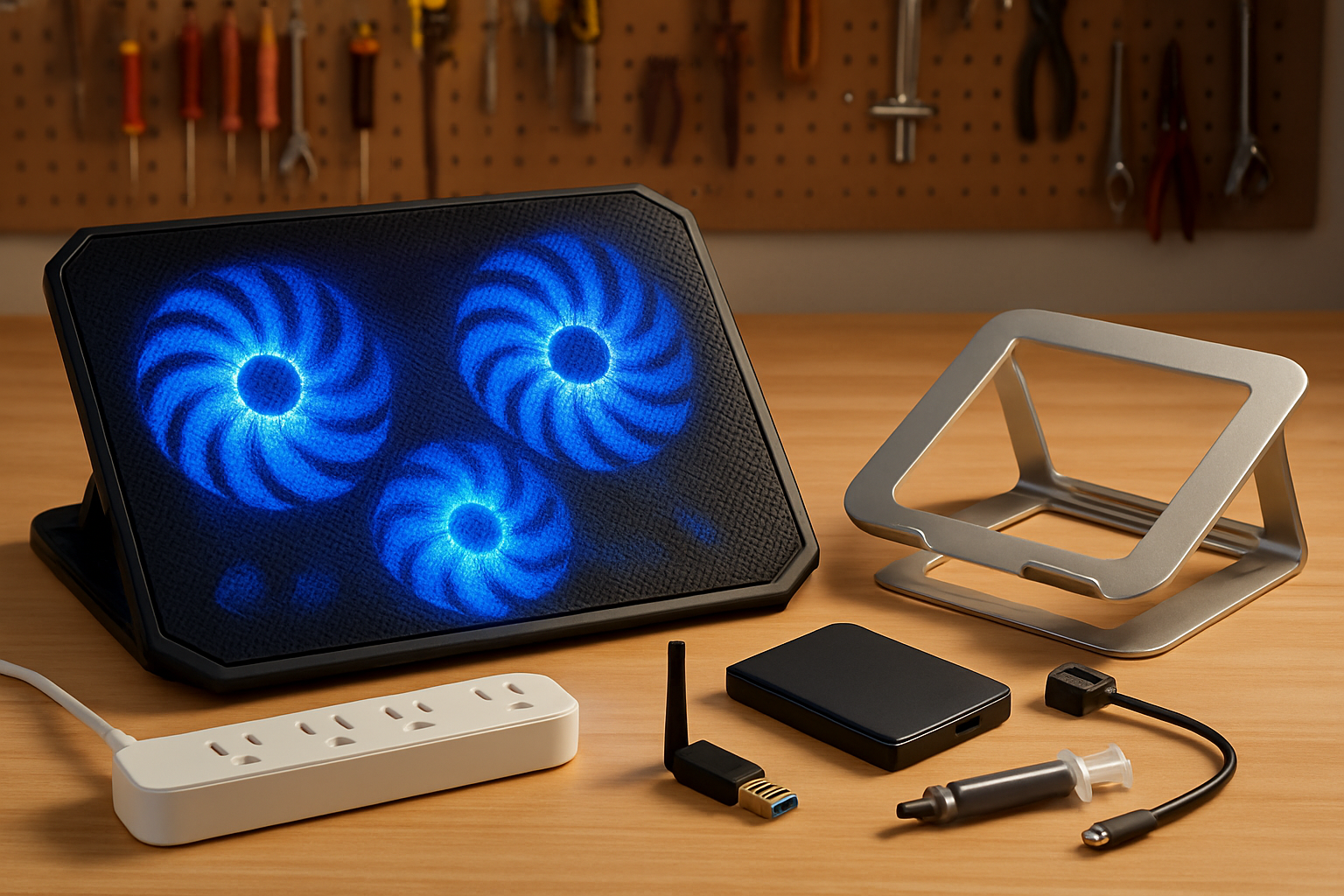
- Laptop cooling pads.A stand or cooling pad may improve airflow if it suits the laptop’s vent layout. Temperature and performance changes vary; avoid products that block vents.
- Compatible case fans.Check supported fan sizes, connectors, airflow paths and filters. Positive pressure depends on total intake and exhaust airflow, not simply the number of fans.
- Thermal maintenance supplies.Thermal paste replacement may be appropriate when servicing a cooler or diagnosing poor heat transfer. Age alone does not prove replacement is needed. Follow the CPU and cooler instructions.
Room temperature, dust and vent clearance can affect cooling. Keep the system on an appropriate surface and follow the manufacturer’s maintenance instructions before adding accessories.
Storage Accessories and Compatibility
Replacing a mechanical system drive with a compatible SSD can improve startup and application responsiveness. Actual results depend on the computer, workload and migration; an external enclosure does not automatically accelerate the operating system.
- External USB SSD enclosures.An enclosure can make a compatible spare SSD usable as external storage. Match the drive interface and size, USB connection and power requirements before buying.
- M.2-to-USB enclosures.Check whether the enclosure supports NVMe, SATA or both, along with the drive length. Transfer speed is limited by the drive, enclosure, cable and computer port; a USB connector alone does not establish speed.
- Standalone SATA cloning docks.Standalone cloning requires both drives to connect directly to the dock, so an internal source drive must be removed. Follow its capacity requirements and verify source and destination carefully. The destination is overwritten; back up first.
Compare current prices for the complete setup, including the drive, enclosure or migration hardware. Check capacity, warranty, return policy and compatibility rather than assuming a particular budget guarantees a result.
Connectivity Fixes for Dropped Signals
Network problems can originate in Wi-Fi coverage, congestion, software, a cable or the internet service. Test the connection before replacing an adapter.
- Compatible USB Wi-Fi adaptersA Wi-Fi 6 adapter may help with a suitable router, but it is not the latest Wi-Fi generation and improvements depend on signal conditions, the USB connection and driver support.
- Suitable Ethernet cablesA damaged or unsuitable cable can affect a wired connection. Choose a correctly rated cable for the required speed and length; shielding is not automatically necessary for a home network.
- Compatible Bluetooth adaptersCheck device batteries, interference, pairing and drivers first. A replacement adapter may help some setups, but a newer Bluetooth version alone does not guarantee a fix or unlock features unsupported by the peripheral.
Compare performance before and after any adapter change using the same location and connection. Keep packaging and check the return policy in case the adapter does not address the problem.
Comfort Accessories That Reduce Fatigue
Comfort matters during computer use. Adjustable equipment may help you arrange a more comfortable workspace, but no accessory guarantees relief from pain or increased productivity.
- Adjustable laptop stands.A stable stand can raise the screen to a comfortable height. Use a separate keyboard and pointing device when needed, and keep the laptop’s vents clear.
- Compatible monitor arms.Check the monitor’s mounting pattern, weight and the desk’s clamp or mounting requirements. Adjust height and distance for a comfortable viewing position.
- Screen comfort before special glasses.Blue-light filtering glasses have not been shown to reliably relieve digital eye strain. Prioritize regular breaks, a comfortable viewing position and suitable brightness; seek eye-care advice for persistent symptoms.
Start with changes to positioning, brightness and work habits before buying accessories. Choose equipment that suits your space and can be adjusted comfortably.
Power Accessories and Their Limits
A surge protector can reduce exposure to some voltage spikes, while an appropriately sized UPS can provide temporary battery power. Neither replaces a backup or guarantees protection against every power event.
- Properly rated surge protectors.Choose a reputable product rated for the connected equipment and local electrical standards. Check protection indicators and follow replacement guidance. Read warranty exclusions; an equipment warranty is not a guarantee against data loss.
- Appropriately sized UPS units.Check both the watt and VA ratings and the manufacturer’s runtime chart for your actual load. Runtime varies with equipment, battery condition and model. Some units also provide automatic voltage regulation.
- Suitable smart power strips.A suitable strip can switch off selected peripherals when they are not needed. Savings depend on standby consumption and electricity rates. Do not cut power to a computer before shutdown, and follow printer and device guidance.
Choose power equipment for the devices you need to protect, and keep backups separate from the computer. If you suspect a wiring or grounding problem, consult a qualified electrician.
How to Shop Smart for PC Accessories
Not all budget PC accessories deliver equal value. Knowing what to prioritize helps you avoid junk that breaks in weeks or delivers no measurable improvement.
- Check reviews for longevity, not featuresRead recent, detailed reviews for the exact model, especially comments about compatibility and long-term use. Star ratings and review counts alone do not establish quality.
- Prioritize brands with actual supportCheck the manufacturer’s warranty, support contact, driver availability and the seller’s return policy. A brand name alone does not establish support for your device.
- Match accessories to your actual bottleneckUse Task Manager to identify busy processes and memory or disk pressure. High CPU usage does not prove overheating, and high disk activity does not prove a failing drive. Investigate the cause before buying hardware.
- Buy locally when timing mattersCompare availability, total cost and return terms. If you need an accessory promptly, confirm local stock and compatibility before visiting.
If you need help identifying a bottleneck, contact Turlock Computer Repair with your symptoms and device model to discuss service options and a quote.
Check temperatures and airflow
Match the drive and connection
Check the chart for your load
Check ratings and limitations
Frequently asked questions
Will budget PC accessories really improve performance, or is this just hype?
Some accessories help when matched to a specific problem. An adapter or cooling pad does not automatically make a computer faster. Diagnose the bottleneck, check compatibility and compare the complete cost before buying.
Can I install these accessories myself, or do I need a technician?
Some external accessories are straightforward, but adapters may need supported drivers and internal work requires care. Follow the product instructions, shut down safely before internal work, and back up before changing storage. Ask for a service quote if you need help.
How do I know which accessory will help my specific slow computer problem?
High CPU usage means the processor is busy, not necessarily overheated. Identify the processes using it and check temperature and throttling indicators. Likewise, sustained disk activity or memory pressure needs investigation before choosing an upgrade.
Are surge protectors really necessary in Turlock, or is that overkill?
A correctly rated surge protector can reduce exposure to some voltage spikes, and a suitable UPS can bridge brief outages. Protection has limits: follow the product guidance, inspect its status indicators and maintain separate backups.
Not Sure Which Accessories Your PC Needs?
Contact Turlock Computer Repair at 2101 Geer Rd Suite 101 to discuss your computer’s symptoms and a service quote. Call (209) 661-9171 or book online. Walk-ins welcome Mon–Sat 9 AM–6 PM.
Bottom line: Buy accessories to solve a verified problem, with compatibility and total cost checked first. Small changes can help some setups, but results vary.

Local, walk-in computer repair at Turlock Professional Park. Tune-ups, SSD upgrades, virus removal and cleanings for laptops, desktops, Macs and gaming PCs — contact us for a quote and current turnaround. (209) 661-9171