Tech Tips From The Bench · Windows Updates
Windows 11 Audio Not Working? Troubleshooting Guide

Start with the symptom
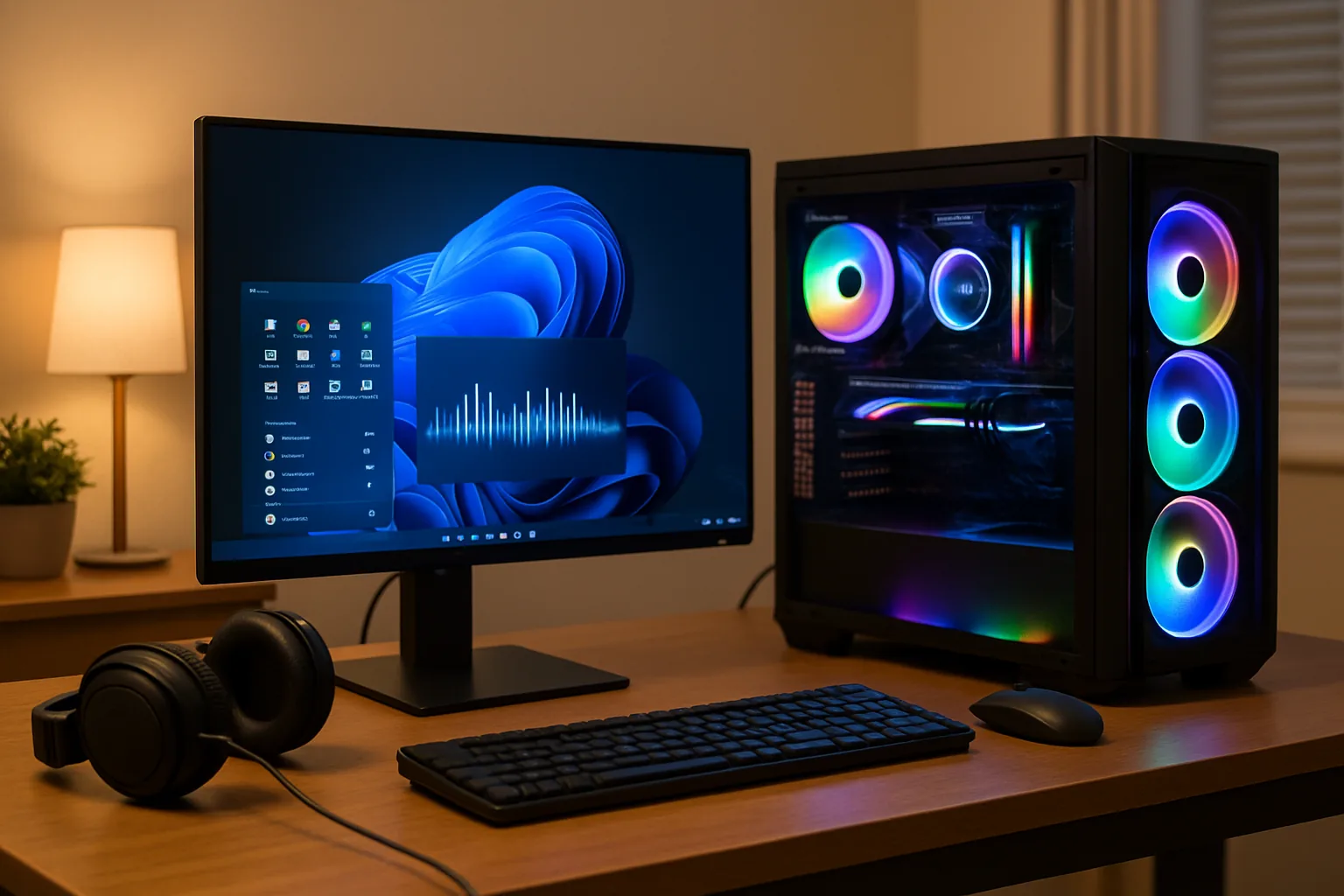
Windows 11 audio not working can mean no sound, crackling, a missing headset or one silent application. These symptoms do not all have the same cause. There is no single patch that guarantees a fix for every PC. Note when the issue began and whether speakers, headphones and different apps behave differently.
Check output, volume and connections
Open Settings > System > Sound and select the intended output. A monitor connected through HDMI may become the output instead of your speakers. Check mute buttons and application volume. Reconnect cables or try another port. Test Bluetooth devices for both connection and output selection.
Use guided troubleshooting
Run the Windows audio troubleshooter through Get Help. Test a different app and another known-working audio device where possible. If only one app is affected, review its own output and permissions. Follow Microsoft’s audio troubleshooting guide for your symptom.
Review updates and drivers
Install supported Windows updates and restart. Obtain audio drivers from your PC, motherboard or audio-device manufacturer. Avoid third-party driver download sites. If the problem started immediately after a driver update, check whether the manufacturer recommends rolling it back. Keep a record of the original version before making changes.
Separate audio faults from system crashes
A game crash or blue screen needs its own evidence; audio playing at the time does not prove the audio service caused the crash. Save error messages and test whether the fault occurs without the headset. Repeated crashes, physical jack damage or no detected audio device may need hardware and software diagnosis.
Local help for persistent audio problems
Bring the affected headset or adapter along when practical, and describe the tests you have tried. Turlock Computer Repair can investigate driver, connection and hardware problems through our computer repair services. Book a repair to discuss the symptoms and available appointment times.
Frequently asked questions
Will Windows Update fix every audio problem? No; connection, app, driver and hardware faults can need different solutions.
Should I reinstall Windows first? Start with basic checks and a backup; reinstalling is not a first step.
Why do speakers work while a headset does not? Check that device’s connection, output selection and driver.
Need help with your computer?
Contact Turlock Computer Repair to discuss your computer and available service options.

Local, walk-in computer repair at Turlock Professional Park. Tune-ups, SSD upgrades, virus removal and cleanings for laptops, desktops, Macs and gaming PCs — most fixed the same day. (209) 661-9171