Tech Tips From The Bench · Home Entertainment
Stream Movies Smoothly: Fix Buffering on Paramount+ in Turlock
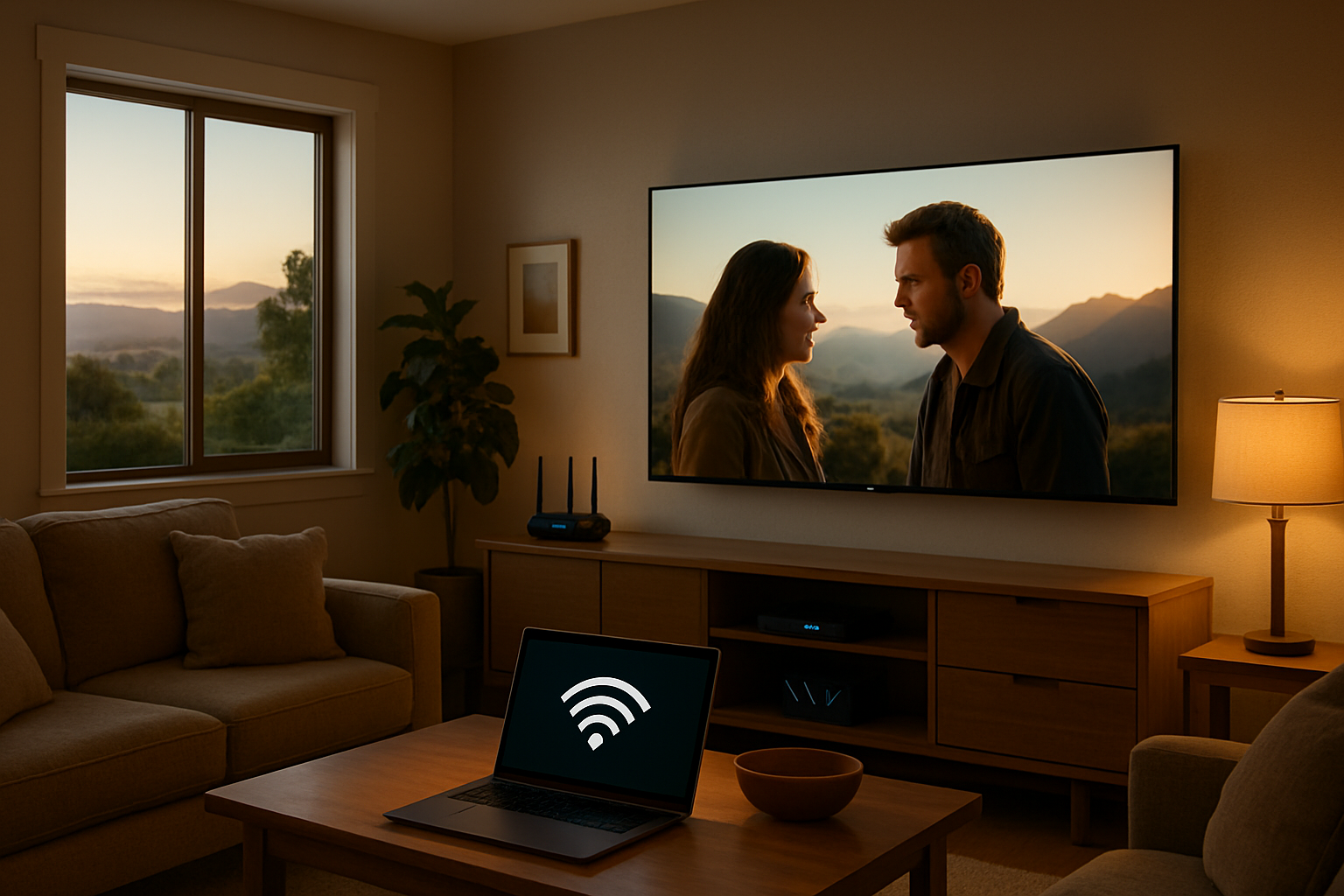

Few things are more frustrating than settling in to watch a great movie on Paramount+ only to face endless buffering, pixelated video, or constant freezing. Here in Turlock, where many of us rely on streaming services for entertainment after a long day, these issues can turn movie night into a tech nightmare. Whether you’re trying to catch the latest blockbuster or a classic film, you deserve to stream movies smoothly without technical headaches interrupting the action.
Why Your Paramount+ Stream Keeps Buffering
Understanding what causes streaming problems is the first step to fixing them. Most buffering issues on Paramount+ stem from one of three core problems: insufficient internet speed, network congestion, or device performance issues.
Your internet connection needs to deliver consistent speeds to handle high-definition streaming. Paramount+ requires at least 3 Mbps for standard definition, 8 Mbps for HD, and 25 Mbps for 4K content. If your actual speed falls below these thresholds, buffering becomes inevitable.
Network congestion happens when too many devices compete for bandwidth simultaneously. In a typical Turlock household, you might have smartphones, tablets, smart home devices, and gaming consoles all pulling from the same internet connection.
- Peak hour slowdowns.Internet speeds often drop during evening hours when everyone in your neighborhood is streaming simultaneously.
- Outdated device hardware.Older smart TVs, streaming sticks, and computers may lack the processing power to decode modern video formats efficiently.
- Cache and storage issues.Apps accumulate temporary files that can interfere with smooth playback if not cleared regularly.
- Router placement problems.Weak Wi-Fi signals caused by distance, walls, or interference create unstable connections that interrupt streams.
How to Stream Movies Smoothly by Optimizing Your Connection
The most effective solution for streaming problems starts with your internet connection. These step-by-step improvements will help you get the bandwidth you’re paying for and deliver it efficiently to your streaming device.
- Test your actual internet speedUse a speed test website on a device connected to your network. Run tests at different times of day to identify patterns. If results are consistently below your plan’s advertised speed, contact your ISP.
- Restart your modem and routerUnplug both devices, wait 30 seconds, then plug the modem in first. After all lights stabilize, plug in the router. This clears temporary glitches and often improves performance immediately.
- Switch to a wired connectionConnect your streaming device directly to your router with an Ethernet cable. Wired connections eliminate Wi-Fi interference and provide more stable speeds for smooth streaming.
- Upgrade your router if necessaryRouters older than five years may not support modern Wi-Fi standards. A dual-band or mesh Wi-Fi system can dramatically improve coverage throughout your Turlock home.
- Position your router strategicallyPlace your router in a central location, elevated off the floor, away from walls and metal objects. Avoid placing it near microwaves or baby monitors that cause interference.
Many Turlock residents we’ve helped at our Geer Road location discover their router was tucked away in a closet or garage. Simply relocating it to a central position can transform streaming quality without spending a dime.
Optimize Your Streaming Device for Better Performance
Your streaming device itself can be the bottleneck preventing smooth playback. Whether you’re using a smart TV, Roku, Fire Stick, Apple TV, laptop, or desktop computer, these optimization steps will help maximize performance.
Start by clearing the Paramount+ app cache and data. On most devices, navigate to Settings > Apps > Paramount+ > Storage, then select “Clear Cache.” This removes temporary files that accumulate over time and slow down the app.
Update both your device’s operating system and the Paramount+ app to the latest versions. Developers constantly release updates that fix bugs, improve streaming efficiency, and add support for newer video codecs.
- Close background applications.Other apps running simultaneously consume memory and processing power that could otherwise support your Paramount+ stream.
- Prevent overheating issues.Ensure adequate ventilation around streaming devices and computers, as thermal throttling reduces performance when components get too hot.
- Free up storage space.Devices with nearly full storage often experience performance degradation across all functions including streaming.
- Restart your device regularly.A full reboot clears memory leaks and temporary glitches that accumulate during extended use.
For computers specifically, ensure no downloads, updates, or virus scans are running while you’re trying to watch content. These background tasks compete for bandwidth and processing resources.
If you’re still experiencing problems after trying these fixes, your device might be too old to handle modern streaming requirements efficiently. Our team at Turlock Computer Repair can assess whether a hardware upgrade would solve your streaming frustrations or if other solutions might work better for your situation.
Adjust Paramount+ Settings for Smoother Streaming
Paramount+ includes several settings you can adjust to improve streaming performance based on your connection quality. These tweaks help the app adapt to your specific network conditions for fewer interruptions.
Access video quality settings within the Paramount+ app. While you might want the highest quality possible, selecting a lower resolution that matches your actual internet speed prevents constant buffering as the app tries to deliver more data than your connection can handle.
If your internet speed hovers around the minimum requirements, manually select 720p HD instead of letting the Paramount+ app auto-select 1080p or 4K. The slightly reduced visual quality is barely noticeable compared to the frustration of constant pauses.
Enable any “data saver” or “bandwidth saver” modes if your device or app offers them. These features intelligently adjust streaming quality in real-time based on connection stability without requiring manual intervention.
Disable auto-play of previews and trailers in the Paramount+ interface. These consume bandwidth in the background while you’re browsing for something to watch, leaving less available for actual streaming when you make your selection.
Manage Network Traffic for Priority Streaming
When multiple people share your home internet connection, bandwidth management becomes critical. Implementing smart traffic prioritization ensures streaming gets the bandwidth it needs even when other devices are active.
Most modern routers include Quality of Service (QoS) features that let you prioritize certain devices or applications. Access your router’s admin panel (usually at 192.168.1.1 or similar) and configure QoS to give your Paramount+ streaming device higher priority than smartphones or tablets.
Schedule automatic updates and backups for times when you’re not streaming. Cloud backup services, operating system updates, and game downloads can saturate your connection and should run during off-hours instead of competing with your movie night.
Consider upgrading your internet plan if you consistently have multiple people streaming simultaneously. A household with three or four people wanting to watch different content at the same time needs significantly more bandwidth than minimum requirements suggest.
Use the 5 GHz Wi-Fi band for streaming if your router supports dual-band operation. The 5 GHz band is less congested than 2.4 GHz, offers faster speeds, and provides better performance for devices within reasonable range of the router.
When DIY Fixes Don't Solve Streaming Problems
Sometimes streaming issues indicate deeper computer or network problems that require professional diagnosis. Knowing when to seek expert help saves you hours of frustration and prevents potential damage from incorrect troubleshooting.
If you’ve tried all the optimization steps above but Paramount+ still buffers, the issue may involve corrupted system files, malware consuming bandwidth, network adapter driver problems, or hardware failures. These require diagnostic tools and expertise beyond typical home troubleshooting.
- Persistent problems across all streaming services.If Netflix, Hulu, YouTube, and Paramount+ all buffer constantly, the issue likely affects your entire system rather than just one app.
- Streaming works on some devices but not others.Device-specific issues may require reinstalling operating systems, updating drivers, or addressing hardware compatibility problems.
- Recent malware or virus infections.Malicious software can consume bandwidth in the background, making streaming impossible even on fast connections.
- Overheating computers or devices.Thermal issues indicate dust buildup, failing fans, or degraded thermal paste that need professional cleaning and maintenance.
Our technicians at 2101 Geer Road in Turlock have the diagnostic equipment to pinpoint exactly what’s preventing smooth streaming on your specific setup. We can test network adapters, analyze bandwidth usage, check for malware, and verify hardware performance to identify the root cause.
Computer problems that affect streaming often worsen over time. What starts as occasional buffering can progress to complete system instability if underlying issues like failing hard drives, corrupted operating systems, or overheating components aren’t addressed promptly. If you need help getting your system optimized for reliable entertainment, you can easily schedule an appointment online or give us a call.
For 4K streaming
Router lifespan
Wired speed boost
Router restart time
Frequently asked questions
Why does Paramount+ buffer more than other streaming services?
Paramount+ typically doesn’t buffer more than competitors if your connection meets requirements. However, the service may default to higher quality settings than other apps, and some users report that it’s less aggressive about reducing quality when bandwidth fluctuates. You can manually reduce video quality in settings to match your actual internet speed for smoother playback. If buffering persists only on Paramount+, try uninstalling and reinstalling the app to clear corrupted data.
How much internet speed do I actually need for smooth streaming?
For a single Paramount+ stream, you need 3 Mbps for standard definition, 8 Mbps for 720p HD, 16 Mbps for 1080p Full HD, and 25 Mbps for 4K content. However, these are minimums for one device only. Add 10–15 Mbps for each additional person streaming simultaneously, plus bandwidth for other devices using your network. Most Turlock households with 2-4 people find that 100–200 Mbps plans provide comfortable headroom for multiple streams plus regular internet use.
Will a new router fix my streaming problems?
A new router can dramatically improve streaming if your current one is more than five years old, doesn’t support modern Wi-Fi standards, or can’t adequately cover your home’s size. However, a router upgrade won’t help if your internet plan itself is too slow or if the problem lies with your streaming device’s hardware. Test your speed directly connected to your modem first—if speeds are good there but poor over Wi-Fi, a router upgrade makes sense. If speeds are slow even when wired, contact your internet provider instead.
Can I stream movies smoothly on satellite or rural internet in Turlock?
Streaming on satellite internet is challenging due to high latency and data caps, though newer services like Starlink perform better than traditional satellite providers. Many rural areas around Turlock have access to fixed wireless internet that works adequately for streaming if you select appropriate video quality settings. Check your actual sustained speeds during peak hours, not just advertised maximums, and consider reducing streaming quality to SD or 720p if you’re on a slower rural connection to avoid buffering.
Get Your Entertainment Back on Track
If Paramount+ streaming problems are keeping you from enjoying your favorite movies and shows, our Turlock team can diagnose and fix the underlying issues. Visit us at 2101 Geer Road Suite 101, call (209) 661-9171, or book online—we're here Mon–Sat 9 AM–6 PM to help you stream movies smoothly again.
Bottom line: With the right combination of connection optimization, device maintenance, and settings adjustments, you can stream movies smoothly on Paramount+ and enjoy uninterrupted entertainment in your Turlock home.

Local, walk-in computer repair at Turlock Professional Park. Tune-ups, SSD upgrades, virus removal and cleanings for laptops, desktops, Macs and gaming PCs — most fixed the same day. (209) 661-9171