Tech Tips From The Bench · Home Entertainment
Streaming Setup Tips: Choose Devices and Connect Your TV
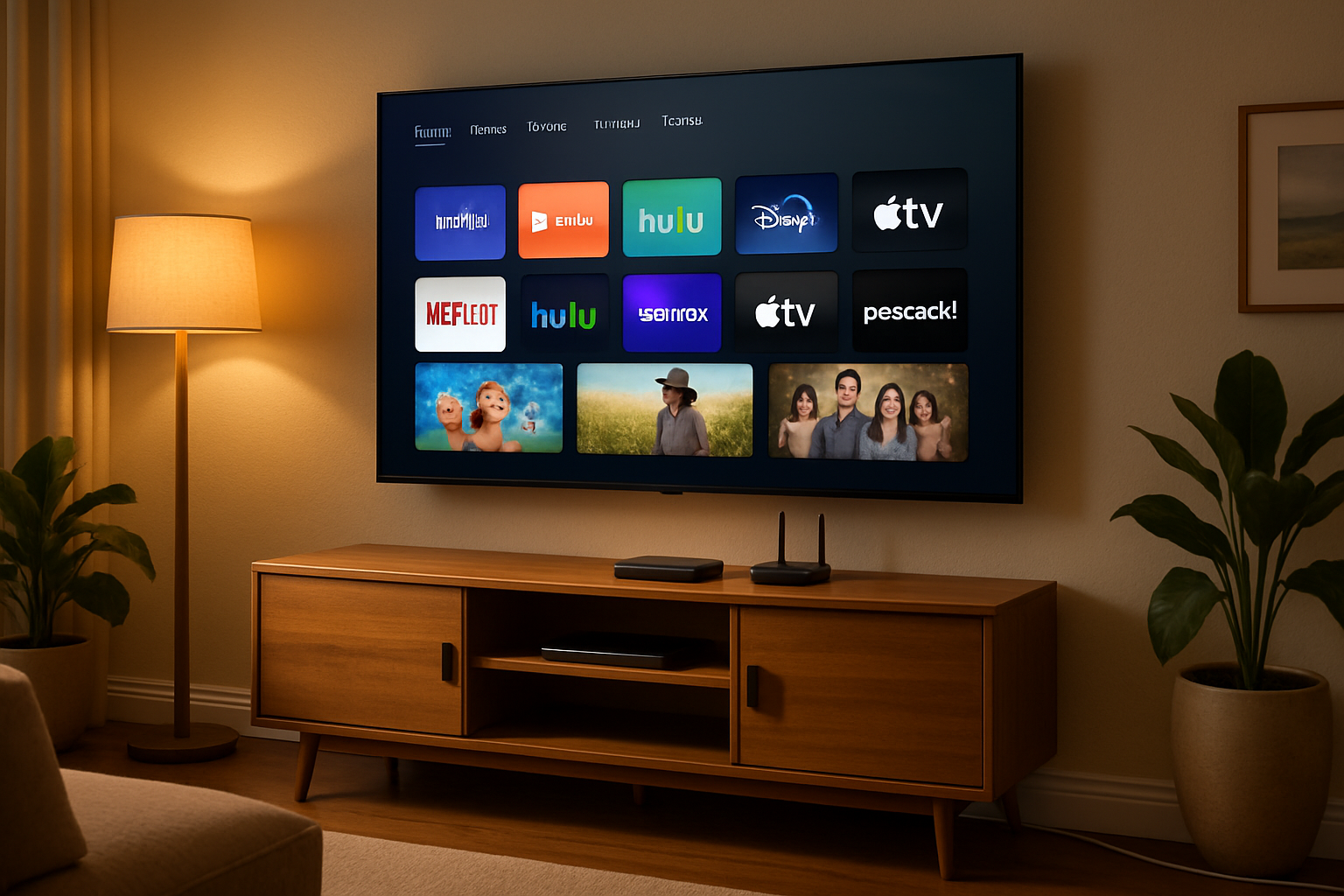

A good streaming setup starts with compatibility. Before buying a new TV, streaming player or router, check whether your current equipment supports the apps, picture formats and sound you want. This guide walks through a living-room setup from choosing a device to testing the finished system.
Choose a Device That Supports Your Services
Start with the TV’s built-in apps. If the services you use still support your TV model and the apps work reliably, you may already have everything you need. A separate streaming player is worth considering when a required app is unavailable, support has ended, or a feature you want is missing.
- Record the exact modelFind the TV or player’s model number and software version in its settings or on its label. A brand name alone is not enough to confirm compatibility.
- Check current supportLook up that model on the manufacturer’s support site and check each streaming service’s supported-device list. For example, HBO Max lists supported devices and software requirements.
- Match the features you will useCheck the required apps, resolution, HDR formats, captions, remote controls and connection options. Confirm the exact model’s features before buying.
- Try it before hiding the cablesInstall available updates, sign in to your apps and test playback while the equipment and connections are easy to reach.
Connect the TV, Player and Sound System
For 4K or HDR, check the whole connection path: your subscription plan, the selected title, the streaming player, any receiver or soundbar passing video through, and the TV’s input. Netflix’s video-quality checklist explains how a device, port or cable can limit the quality available.
- Choose the appropriate HDMI input.Read your TV’s manual for the input that supports the resolution and HDR format you need, including any enhanced-input setting it requires. Check the service’s copy-protection requirements too.
- Check cable capability and condition.A cable’s age does not tell you what it supports. Match the cable to the equipment’s requirements. The Premium High Speed HDMI certification program tests cables for 18 Gbps bandwidth and features such as 4K at 60 Hz and HDR. Check the certification label when choosing a replacement.
- Follow the sound-system connection guide.Use the TV and soundbar or receiver manuals to select the correct ports and audio output. If using ARC or eARC, check that both devices support the connection and use their designated ports.
- Check the result with real content.Choose a title that offers the format you want. Check the app’s quality label and the TV or receiver’s information display where available. Compare dialogue, captions and lip sync as well as the picture.
Picture and motion settings are partly a matter of preference. Try a film-oriented picture preset if your TV offers one, then compare it with your usual setting in your room. Change one setting at a time so you can tell what helped.
Check the Connection Where You Watch
Check speed on the TV or player when possible. A test on a phone beside the router does not establish what reaches a device across the house. Use the app’s network check or a manufacturer-supported test, and compare the result with the service you plan to watch.
- Netflix:Netflix recommends a stable connection of at least 3 Mbps for 720p, 5 Mbps for 1080p and 15 Mbps for 4K.
- HBO Max:HBO Max specifies at least 5 Mbps for HD and recommends 50 Mbps or more for its best 4K streaming experience.
These are service-specific figures, not one universal 4K minimum. Simultaneous streams, downloads and other activity share the connection. Check playback under the conditions your household actually uses before deciding you need a faster internet plan.
If the player supports Ethernet, a wired connection is a useful option to test because it removes the Wi-Fi link from that device’s path. It cannot fix an internet-provider problem or a streaming-service outage. With Wi-Fi, follow the router manufacturer’s placement guidance and test reception at the TV.
For an existing buffering problem, use our connection, browser and PC checks or PC and streaming-connection guide to narrow down the cause before buying equipment.
Set Up Accounts and Check What You Pay For
Make a short list of the services you use, the plan for each one, who bills you and the next renewal date. Include subscriptions billed through an app store, TV provider or bundle. Before signing up again on a new player, check whether you already have access and use the service’s instructions for signing in through that provider.
- Confirm the plan’s features.Check the resolution, simultaneous-stream limits and other features that matter to your household. A player capable of 4K cannot add 4K access to a plan that does not include it.
- Set profiles and controls.Review available profiles, captions, accessibility options, parental controls and purchase restrictions for your household.
- Review renewal terms.Before starting a trial or changing a plan, check its renewal date, billing provider and cancellation terms. Keep reminders for any trial you intend to review.
Do not assume a company merger gives one subscription access to another service. As checked on October 11, 2026, the HBO Max company-update FAQ says there are no immediate changes to HBO Max or Paramount+ apps, subscriptions, pricing or content access. Check the official update before cancelling or replacing either subscription.
Maintain Apps When There Is a Reason
Keep the player and its apps updated through their supported update settings. Beyond that, let the symptom guide your next step. Routine monthly cache clearing is not necessary for every platform, and a slow app does not by itself mean the player needs replacing.
- If one app misbehavesCheck for an app or system update, close and reopen the app using the device’s supported controls, then restart the player if needed.
- If storage is lowUse the device’s storage controls, if available, to review installed apps and downloads. Remove only items you no longer need after checking what will be deleted.
- If the problem continuesFollow that service’s instructions for your exact device. Clear cache, clear app data or reinstall only when the appropriate instructions call for it.
Test the Finished Setup
Before putting equipment back in a cabinet or securing the cables, run through this final check:
- Try each service you use.Confirm that the right account and profile are signed in and that a selected title plays.
- Check picture, sound and controls.Test the intended picture format, dialogue, captions, volume control and lip sync.
- Try normal household use.Check playback while other people use the connection, then test again with other activity paused if playback struggles.
- Keep a simple setup record.Note model numbers, software versions, HDMI inputs and useful settings. Keep passwords out of any troubleshooting notes you share.
If something fails, note whether it affects one title, one app, one device or several devices. Record any error code and the changes you have already tried. That gives the streaming service, equipment manufacturer or repair provider a more useful starting point.
Frequently Asked Questions
Do I need a new smart TV to use a different streaming service?
Check whether your current TV supports the service first. If it does not, a compatible external streaming player may let you keep the TV. Confirm the player’s app support, the TV’s inputs and the picture and audio formats you want before buying.
Does every 4K service need the same internet speed?
No. Follow the service’s current guidance, such as the Netflix and HBO Max recommendations linked above. Also allow for other activity on the connection and check the speed and playback experience at the device you actually use.
Should I replace an old HDMI cable?
Check whether it supports the required format and works reliably. Age alone is not a reason to replace it. If a replacement is needed, follow the equipment manufacturer’s cable requirements and look for the appropriate HDMI certification.
Who should I contact if the setup still does not work?
For account access or billing, start with the streaming service or the provider that bills you. For TV, player or home-network setup, use the equipment maker’s support or your internet provider as appropriate. If the problem is with a computer or laptop, contact Turlock Computer Repair with its model and symptoms.
Need Help With a Computer or Laptop?
Contact Turlock Computer Repair about a computer or laptop problem. Have the model, symptoms and checks you have already tried ready when you call or book a repair.
Bottom line: Confirm support, connect the equipment correctly and test the result. Buy an upgrade when it solves a specific limitation you have identified.

Practical technology guides for home and work. (209) 661-9171