
Tech Tips From The Bench · Upgrades
HDD to SSD upgrade: compatibility, migration and performance
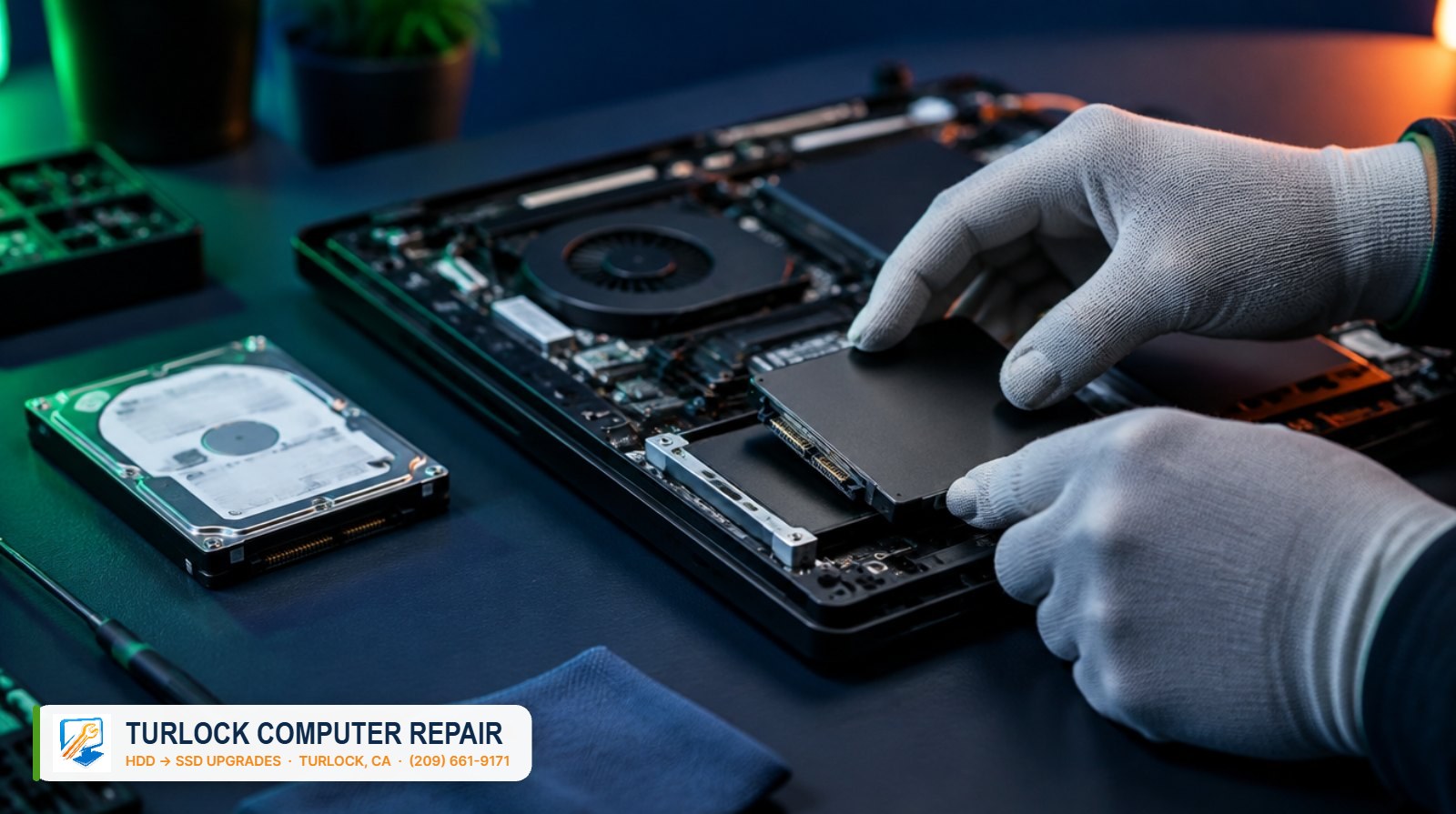

An HDD-to-SSD upgrade can improve startup, app loading and file access when a mechanical drive is a bottleneck. Slowdowns can also come from software, memory pressure, overheating or failing hardware. Start with a diagnosis, a verified backup and a compatibility check before buying a replacement drive.
Why an old hard drive makes everything feel slow
A mechanical hard drive stores data on rotating platters and uses a read/write head to access it. Seek and rotation delays can make scattered small reads slower than on an SSD. The effect on startup depends on the complete system and workload.
Modern Windows 10 and 11, browser updates, antivirus scans, OneDrive syncing and background updates all hammer the drive at the same time. On an HDD, those tasks fight over one slow mechanical arm. That is why the drive light stays solid and the mouse cursor turns into a spinning circle. The processor and memory are often just sitting there waiting for the disk.
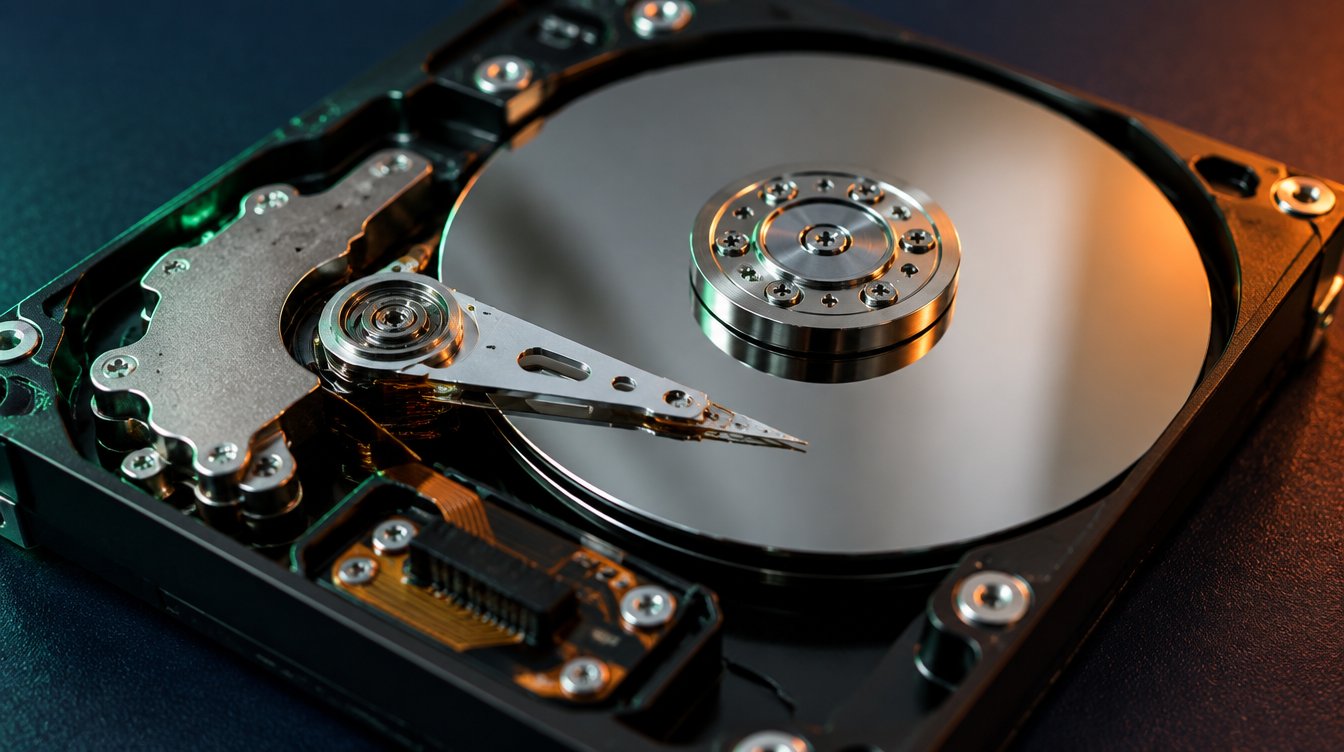
SSD vs HDD: what’s the difference?
A solid-state drive has no platters, no arm and no motor, which can improve storage responsiveness. It stores data in flash memory chips (the same technology as your phone) and reaches any piece of data almost instantly. Here is how the two compare on the things that matter to a real person, not a spec sheet.
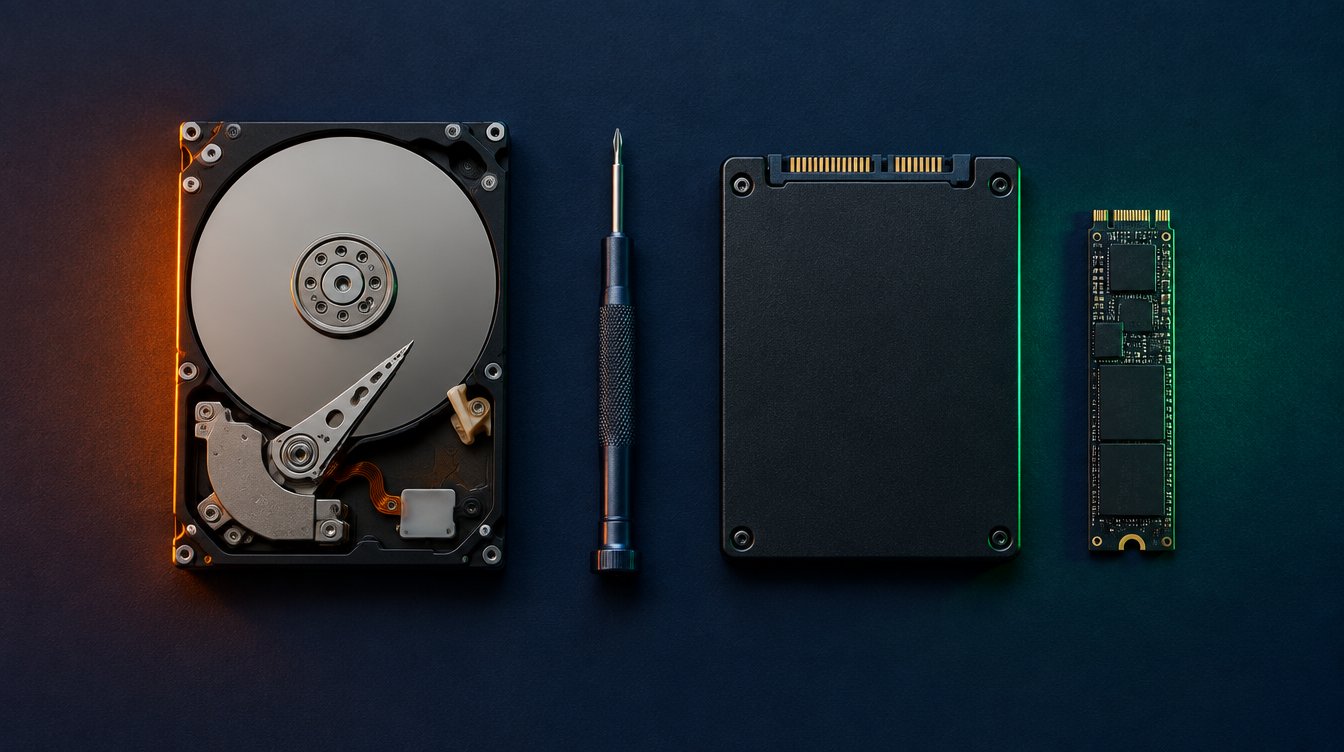
| Feature | Hard Disk Drive (HDD) | Solid-State Drive (SSD) |
|---|---|---|
| How it works | Spinning platters + moving read/write arm | Flash memory chips, no moving parts |
| Windows boot | Mechanical reads can delay startup | Can reduce storage-related waiting |
| Read / write speed | Mechanical access limits throughput | Higher potential; interface matters |
| Random access (small files) | Head seeks between data locations | Electronic access with lower latency |
| Noise & heat | Moving parts can make noise | No moving-drive noise; heat varies |
| Shock resistance | Moving parts vulnerable to impact | No moving parts; still protect it |
| Laptop battery | A motor draws power | Efficiency depends on model and use |
| Cost per TB | Often lower for bulk capacity | Often higher; compare current models |
| Lifespan | Can fail mechanically or electronically | Finite write endurance; sudden failures remain possible |
These are general differences. Startup and transfer performance also depend on the operating system, applications and the rest of the computer. See Kingston’s SSD and HDD guidance for background.
What actually gets faster after the upgrade
An SSD can reduce storage-related waiting. The size of the improvement depends on the old drive, the replacement and the workload. Compare the tasks that matter to you before and after the upgrade.
- Startup and shutdown. An SSD can reduce storage-related startup delays, although firmware, updates and startup apps still affect timing.
- Opening programs. Apps that wait on disk reads may open faster. Launch times still depend on the application and computer.
- Multitasking. Faster storage may help when applications compete for disk access. It cannot compensate for every CPU or memory limitation.
- Waking from sleep. Resume behavior depends on the sleep mode, operating system and device; an SSD upgrade does not guarantee a particular wake time.
- File transfers and photo libraries. Faster storage can help, but the slowest source, destination or connection can limit the transfer.
- Games and creative work. Storage upgrades can shorten loading and asset-access delays. Frame rate and rendering speed also depend on other components.
Signs your hard drive is failing (don’t wait for the SSD upgrade)
A failing drive needs a different plan from a routine upgrade. Drives can fail with or without warning. If you hear unusual clicking or grinding, lose access to files or receive drive-health warnings, stop unnecessary use. If the data is irreplaceable and you lack a current backup, seek recovery advice before repeatedly restarting, testing or cloning the drive.
- Unusual clicking or grinding
Stop unnecessary use and seek diagnosis. Noise alone does not establish an exact fault, but repeated attempts can add risk if the drive is damaged.
- Freezes or blue screensStorage faults are one possible cause, but software, memory and other hardware can also be responsible. Record errors and seek diagnosis.
- Files that won’t open or vanishCorrupted photos, documents that “cannot be read,” or folders that disappear after a reboot.
- S.M.A.R.T. warnings“Windows detected a hard disk problem” or a BIOS message at startup. This is the drive itself telling you it is failing.
- Boot loops or “No bootable device”The computer restarts itself or can’t find Windows. Sometimes intermittent at first.
- Progressively slower operationInvestigate the cause rather than assuming normal age. If files are becoming unreadable or the drive makes unusual noises, avoid unnecessary use and seek recovery advice.
Is your computer a good candidate? Check what applies:
Which SSD should you choose? SATA vs NVMe
There are two main types of drive for an SSD upgrade, and the right one depends on what your computer can physically accept — which is the first thing we check.
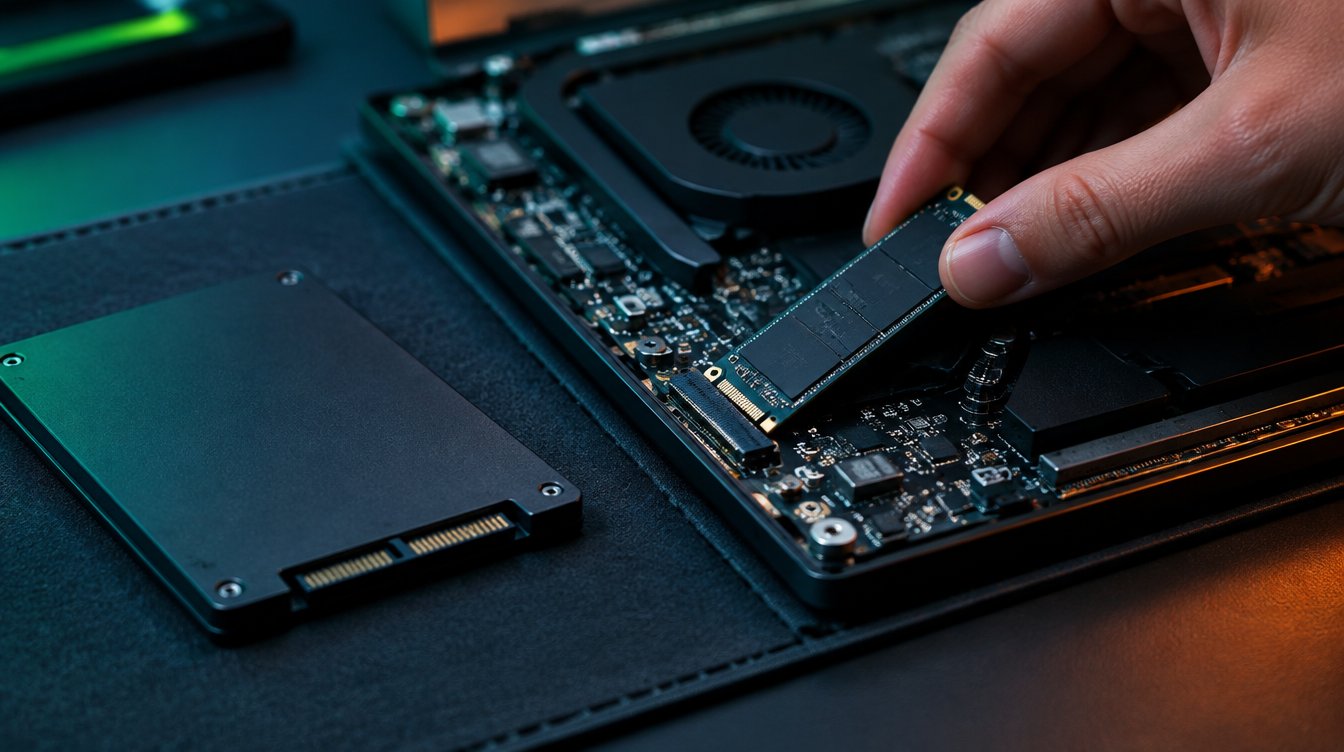
2.5-inch SATA SSD
A 2.5-inch SATA SSD can replace a compatible SATA drive when the computer provides the correct connector, bay clearance and mounting hardware. Check the exact service manual rather than relying on the computer’s age. Capacity, endurance, warranty and software support also matter.
M.2 NVMe SSD
M.2 describes a physical format; the slot may support SATA, PCIe/NVMe or particular combinations. Check the supported interface, module length, clearance and boot support for the exact model. An available M.2 slot alone does not establish compatibility.
How much storage for your SSD upgrade?
Check current storage use and expected growth. Allow spare capacity for updates and working files, then compare compatible drives. There is no universal free-space percentage that guarantees performance or endurance.
How to plan an HDD-to-SSD upgrade
A compatible, healthy installation may be migrated by cloning. A clean installation may be preferable in other cases. Neither approach guarantees that every program, license or setting will transfer without follow-up. Decide on the migration and rollback plan before removing the original drive.
- Health check & compatibility Identify the exact device, drive interface and physical requirements. Assess the existing drive and whether other faults make an upgrade poor value.
- Verify the backup Keep a separate backup of important files and confirm it can be read. If a drive may be failing, seek recovery advice before adding unnecessary reads.
- Choose the migration method Use supported cloning software or plan a clean installation. Check capacity, encryption, boot mode and application requirements before proceeding.
- Install and configure carefully Follow the computer and drive makers’ instructions. Do not change storage-controller modes blindly; an incompatible mode change can prevent the existing installation from booting.
- Test before retiring the original Check booting, important files, applications and the backup process. Keep the original drive unchanged until the migration has been verified.
How to prepare for your SSD upgrade
Before an SSD upgrade, collect the information needed to restore access if the migration fails or the computer requests recovery credentials.
- Know your loginsMake sure you know your Windows password and, if you use one, your Microsoft account login. After a drive clone Windows occasionally asks you to sign in again.
- Check BitLockerMany Windows 11 laptops have BitLocker encryption turned on silently. If it is on, the recovery key must be saved (it is usually in your Microsoft account) before the drive is touched.
- Preserve a recoverable source Back up and verify important data before cleanup. Avoid deleting files merely to make an uncertain migration fit a smaller drive.
- Note your essential programs List the applications and devices you rely on. Keep installers and license information where available, and verify these applications after migration.
- Bring the charger Keep the correct power adapter available. Follow the manufacturer’s power requirements for installation and firmware updates.
SSD upgrade cost: is it worth it vs buying new?
Compare a written quote for the compatible drive, migration and installation with the cost and useful life of a replacement computer. Include any additional repairs, backup needs and software work in the decision.
An upgrade is more attractive when the rest of the computer meets your needs and supports a maintained operating system. Check battery condition, reliability, memory, application requirements and ongoing software support instead of using age or processor branding alone.
Upgrading a computer you rely on
For a small office, identify which tasks are actually delayed by storage. Measure those tasks on a representative computer before deciding whether a wider upgrade is worthwhile. An SSD will not solve every network, application or staffing bottleneck.
Before changing a computer you rely on, plan the backup, downtime and rollback. Confirm how data will be handled and check any software or device requirements before starting.
SSD upgrade FAQ
Will I lose my files or need to reinstall Windows?
A healthy installation can sometimes be cloned, but migration is not risk-free. Back up first and confirm the method, recovery keys, application licensing and rollback plan. A clean installation may be more suitable in some cases.
How long does an HDD to SSD upgrade take?
Timing depends on the device, data volume, drive condition and migration method. Ask for an estimate after the system has been assessed.
Can my old laptop take an SSD?
It depends on the exact model. Confirm the supported interface, physical size, mounting requirements and whether the storage is replaceable.
SSD or more RAM: which should I do first?
Check the bottleneck. An SSD can reduce storage delays; more compatible memory can help when memory pressure causes paging. Some systems need neither, and others need a broader repair.
Do SSDs wear out?
Flash storage has finite write endurance, and controllers or other components can fail without a useful warning. Health monitoring is helpful, but it does not replace independent, tested backups.
What happens to my old hard drive?
Keep it unchanged until the migration is verified. Reuse depends on its condition. Before disposal or transfer, choose and verify an erasure method appropriate for the drive and the sensitivity of its data.
Is it worth upgrading a Mac to an SSD?
Mac storage and serviceability vary by exact model. Check whether the storage is replaceable, the supported hardware and operating system, and the cost and risks of the required disassembly.
Ready for your SSD upgrade? Explore your upgrade options.
For questions about an SSD upgrade, contact Turlock Computer Repair at (209) 661-9171. Ask about compatibility, the migration plan, estimates and timing.
For computer repair questions in Turlock, contact the shop using the phone or booking links on this page.
One Response