Tech Tips From The Bench · Data Security
Your SSD Controller May Be Hiding Deleted Data
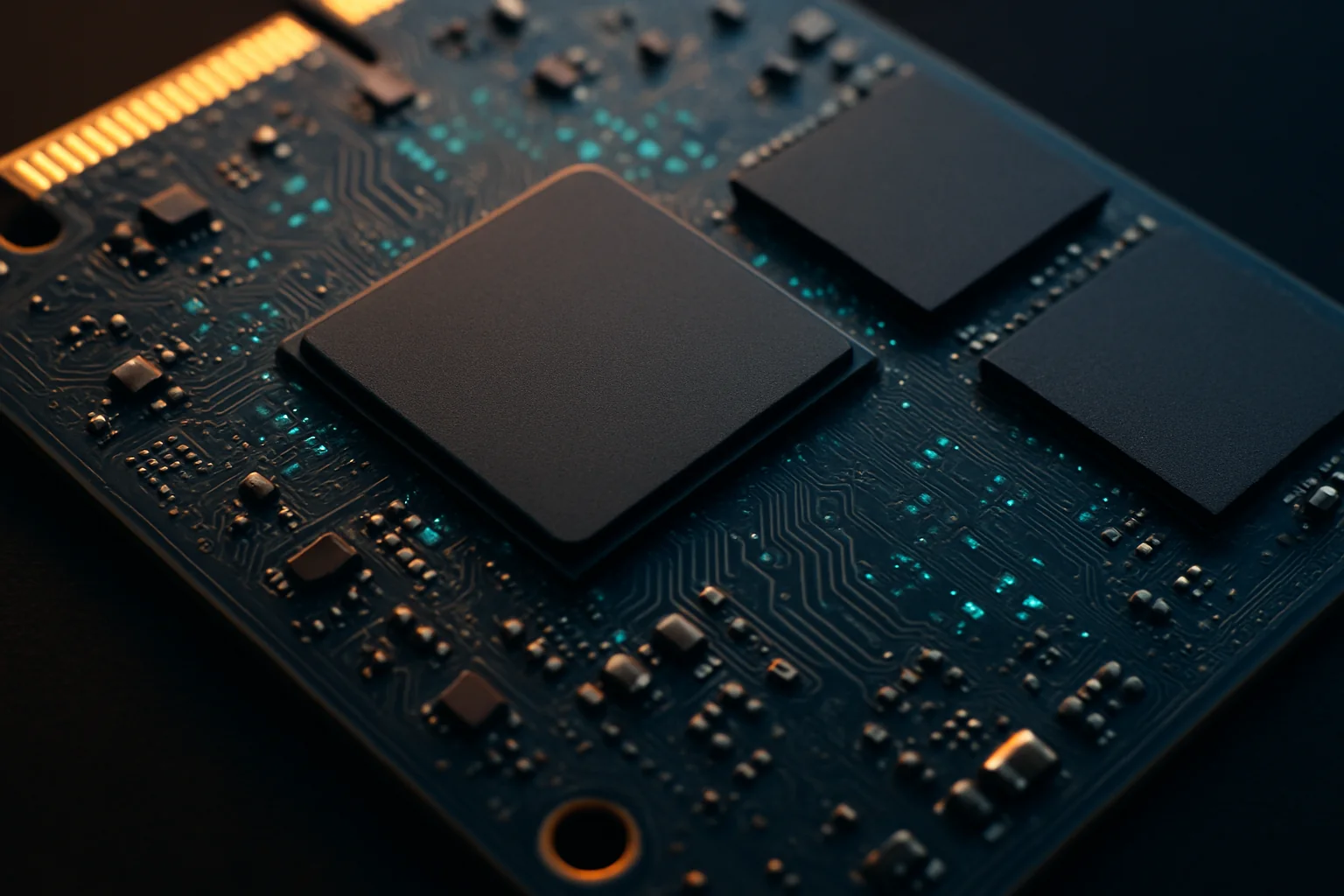

Deleting files is not the same as verified SSD sanitization. SSD controllers manage flash memory in ways that can leave data outside locations ordinary software can overwrite. Before selling, donating or recycling a computer, follow the documented erasure procedure for that model.
How SSD Controllers Actually Manage Your Data
Unlike the spinning platters of traditional hard drives, solid-state drives use flash memory chips controlled by a sophisticated processor called the SSD controller. This controller doesn’t just store your data—it actively manages where everything lives, performs wear-leveling to extend drive life, and makes constant decisions about which memory cells to use.
Deleting a file marks its storage as no longer needed, and the operating system may notify the SSD through TRIM. What remains and whether it is recoverable depend on the controller, garbage collection, encryption and access method. Do not assume a fixed retention period or that physical remnants are recoverable by ordinary software.
Modern SSDs also maintain spare memory blocks that are invisible to your operating system. The controller rotates these spare blocks in and out of active use to balance wear across all memory cells. Your deleted files might end up in these hidden spare areas, completely inaccessible through normal file recovery tools but still physically present on the drive.
Why This Matters for Turlock Residents
Before transferring a computer or SSD, consider the personal and business information it has held. File deletion alone is not evidence that the device is ready to leave your control.
Small businesses in Turlock face even bigger risks. When you upgrade your office computers, customer data, financial records, and proprietary information might still be sitting on those drives you’re getting rid of. One recovered file could mean a data breach, regulatory violations, or damaged customer trust.
The SSD controller hiding deleted data isn’t a flaw—it’s a feature that improves performance and longevity. But it creates a privacy gap that many people don’t know exists until it’s too late.
- Consider financial documents.Include tax returns, bank statements and other sensitive files when assessing disposal requirements.
- Review account access.Remove accounts and follow the device’s documented transfer procedure; deletion alone is not proof of sanitization.
- Business data creates liability.Customer lists, contracts, and proprietary files can expose you to legal and compliance issues.
- Include personal files.Assess photos and documents when deciding how to sanitize a device; recoverability varies.
Secure Erase Methods That Actually Work
The appropriate sanitization method depends on the drive or computer model, supported commands and sensitivity of the data. Consult current manufacturer instructions and choose a process whose completion can be verified.
Do not assume that every command labeled secure erase resets every physical location on every SSD. SATA, NVMe and integrated computer storage may use different supported procedures, including sanitization commands or qualifying cryptographic erasure.
- Identify your SSD manufacturerCheck Device Manager (Windows) or System Information (Mac) to find your drive’s make and model number.
- Find the model-specific instructions.Use the drive or computer manufacturer’s current official procedure; supported tools and commands vary.
- Prepare as instructed.Back up needed files, confirm the target device and follow the manufacturer’s requirements, including boot media only if needed.
- Run the documented procedure.Follow the instructions carefully. Duration varies, and the intended result is irreversible loss of access to the data.
- Verify the operation.Check the tool’s completion status and the prescribed validation steps. An empty file listing alone is insufficient evidence.
Enabling encryption immediately before a normal format can leave older plaintext data in locations the operating system cannot address. Cryptographic erasure requires that sensitive data was appropriately encrypted and that the relevant keys can be sanitized. If those prerequisites are uncertain, obtain a suitable model-specific sanitization or destruction method.
Common Mistakes That Leave Data Behind
Even tech-savvy folks make critical errors when trying to protect their data before selling or disposing of drives. Understanding these pitfalls helps you avoid becoming another cautionary tale about recovered deleted data.
- Formatting is not verification.A normal format does not establish that every prior physical storage location has been sanitized.
- Multiple overwrites waste time.The old advice about 7-pass overwrites comes from magnetic hard drives and doesn’t work properly with SSD controllers managing wear-leveling.
- Reset methods differ.A reinstall differs from sanitization. On supported Macs, Apple’s Erase All Content and Settings destroys cryptographic material to make user data inaccessible.
- TRIM is not a disposal certificate.TRIM and garbage collection affect deleted data, but do not substitute for a suitable verified sanitization process.
Choose a documented method before starting, preserve any files you still need in a verified backup, and confirm the identity of the device being erased. Sanitization is intended to make recovery infeasible and can be irreversible.
When replacing an SSD, keep the old drive under your control until the chosen sanitization process and its verification are complete. Record what was done before transferring the drive.
Choosing a Data Destruction Provider
For regulated or especially sensitive data, work with your organization’s security or compliance lead to select an appropriate process, provider and documentation. No generic consumer guide can establish that a method satisfies every requirement.
Before hiring a data-destruction provider, ask which method it uses for the exact device, how it verifies completion and what documentation it supplies. A normal filesystem scan alone cannot inspect all controller-inaccessible areas.
If a drive cannot be appropriately sanitized or the data requires destruction, select a provider and destruction process suitable for the media and applicable requirements. Do not rely on a generic particle-size claim or the word certified without supporting details.
Compare the provider’s written scope, handling practices, documentation and price. Keep the device secure while deciding how to dispose of it.
Prevention Practices for Daily Computing
You don’t have to wait until you’re selling a computer to protect yourself from the SSD controller hiding deleted data. Smart practices throughout your drive’s life reduce risk and make eventual disposal easier.
Enable suitable device encryption before storing sensitive information, and protect the recovery keys. Encryption reduces exposure if a device is lost, but turning it on later does not necessarily cover older plaintext remnants. Follow the model’s documented key-erasure process when relying on cryptographic sanitization.
- Enable encryption early.Use suitable encryption before storing sensitive data and protect the recovery keys.
- Avoid SSD file-overwrite assumptions.Per-file overwrite tools may miss earlier copies because of wear-leveling. Use a suitable whole-device process before disposal.
- Check local cloud copies.Cloud services may leave synced or cached data locally. Review accounts and local copies as part of disposal planning.
- Document your drive’s history.Note the purchase date and any secure erase operations for future reference when disposal time comes.
Review encryption, backups, account access and disposal plans throughout a device’s life. For work devices, follow the organization’s policies before changing or erasing anything.
If you need assistance, request an appointment to discuss the device and your goal. Confirm which services are available and obtain an estimate before proceeding.
Confirm the exact device
Preserve needed files first
Use an appropriate method
Check and document completion
Frequently asked questions
Does emptying the recycle bin permanently delete files from my SSD?
No. Emptying the recycle bin is not proof of sanitization. TRIM, garbage collection, encryption and the controller affect what remains and whether it is recoverable. Use the documented sanitization process for your exact device before disposal; do not rely on a fixed recovery window.
Can I just format my SSD before selling my computer?
A normal format is not evidence that every previously used physical location on an SSD has been sanitized. Use the manufacturer’s appropriate procedure and verify completion. On supported Macs, Erase All Content and Settings uses cryptographic erasure; check the official instructions for your model.
How is SSD data deletion different from old hard drives?
SSDs can move data between physical flash locations through wear-leveling and remapping. Host-based overwrite tools cannot necessarily reach all previous copies. Select a sanitization method appropriate to the media instead of assuming a multi-pass HDD routine applies.
What's the most secure way to dispose of an SSD in Turlock?
The appropriate method depends on the device, data and intended reuse. Use a documented, verified sanitization process when reuse is appropriate. If the device cannot be sanitized or the risk requires destruction, use a suitable destruction provider. Confirm its scope and documentation rather than assuming one procedure is best for every drive.
Protect Your Data Before It's Too Late
Planning to sell, donate or recycle a computer? First identify its storage and the appropriate disposal process. Call (209) 661-9171 or request an appointment to ask what assistance is available and obtain an estimate.
Bottom line: File deletion is not verified SSD sanitization. Follow a documented process appropriate to your exact device and the sensitivity of its data.

Local, walk-in computer repair at Turlock Professional Park. Tune-ups, SSD upgrades, virus removal and cleanings for laptops, desktops, Macs and gaming PCs — ask about availability and an estimate. (209) 661-9171