Tech Tips From The Bench · Gaming Hardware
Gaming Laptop Buying Guide: How to Compare Deals

Start with your games and display
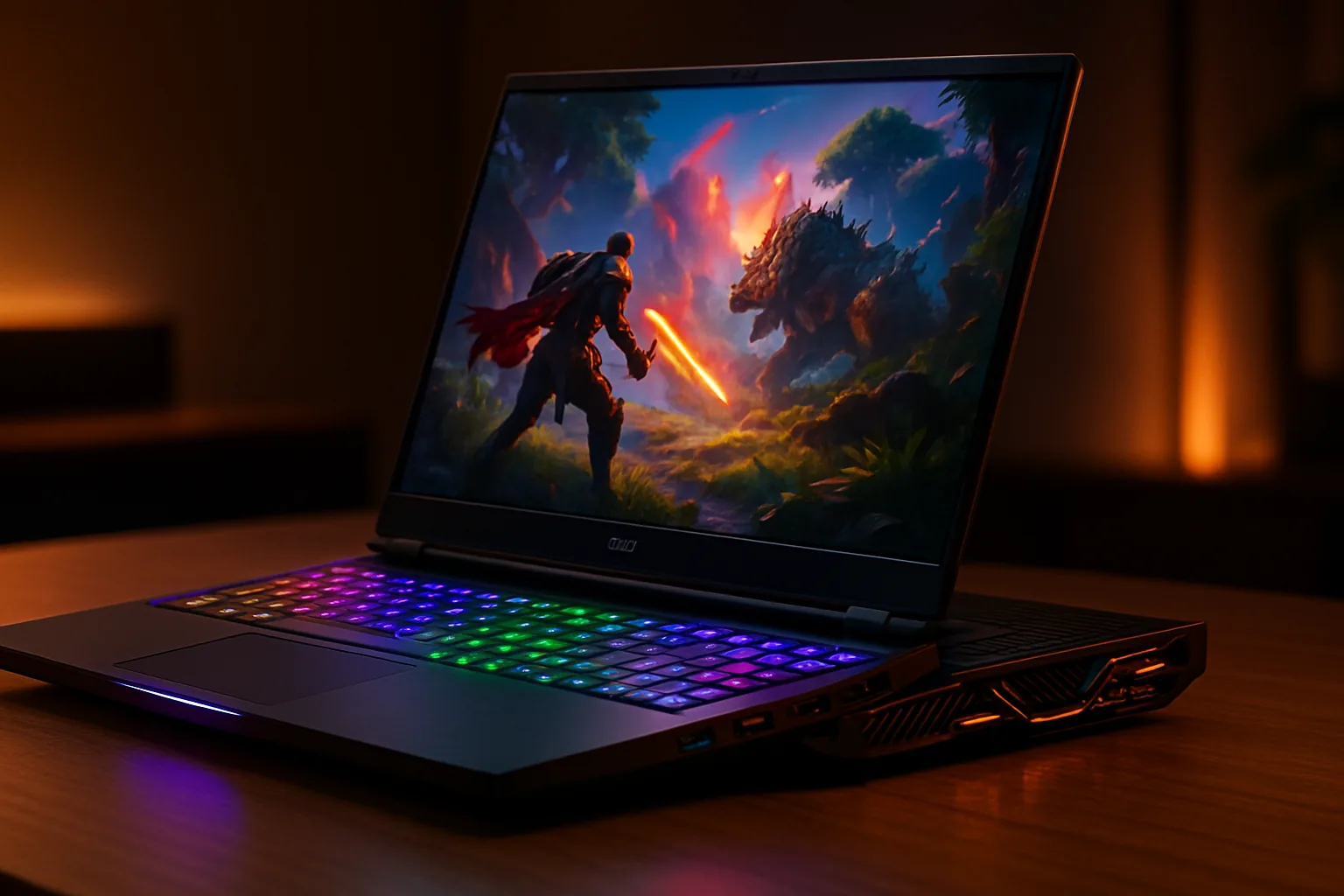
A useful gaming laptop buying guide starts with the games you play, your target resolution and the settings you can accept. Compare the exact laptop model rather than the GPU name alone. This is a buying checklist, not a list of live prices or limited-time offers.
Check the exact GPU specifications
Laptop and desktop graphics cards with similar names can differ. NVIDIA lists the RTX 5060 Laptop GPU with 8 GB of GDDR7, not the 16 GB claimed in an earlier version of this draft. Confirm specifications on the official NVIDIA laptop specifications and the laptop maker’s model page. Power limits and cooling also affect results; charger wattage alone does not reveal GPU performance.
Compare the complete system
Read tests of the exact configuration, including sustained gaming performance, fan noise and screen brightness. Check whether RAM is soldered, whether storage has an expansion slot and whether opening the laptop affects service arrangements. Match memory and storage capacity to your games and other work instead of assuming one specification eliminates all bottlenecks.
Judge the total deal
Compare final prices including tax, delivery and any upgrades you actually need. Check the return window, warranty provider, seller reputation and whether the item is new, refurbished or open-box. An older model can still be useful when its condition, support and performance meet your needs. A large advertised discount is not proof of value.
Set up and care for your laptop
Use supported Windows and manufacturer updates. Keep vents clear and use a firm surface. Select a power mode that balances performance, temperature and noise. Follow the maker’s battery-care and cleaning guidance; do not remove an internal battery or replace thermal paste on an arbitrary schedule. For compatible upgrades, review our Turlock computer repair services.
Frequently asked questions
Can a gaming laptop be upgraded? It depends on the exact model; memory and storage may be accessible, while processors and GPUs usually are not.
Is a newer GPU always better? Compare real tests and the full configuration.
Should I buy the cheapest deal? Only if its performance, condition and warranty meet your needs.
Need help with your computer?
Contact Turlock Computer Repair to discuss your computer and available service options.

Local, walk-in computer repair at Turlock Professional Park. Tune-ups, SSD upgrades, virus removal and cleanings for laptops, desktops, Macs and gaming PCs — most fixed the same day. (209) 661-9171