Tech Tips From The Bench · Hardware Upgrades
5 PCIe Cards That Aren't Graphics Cards (What They Do)
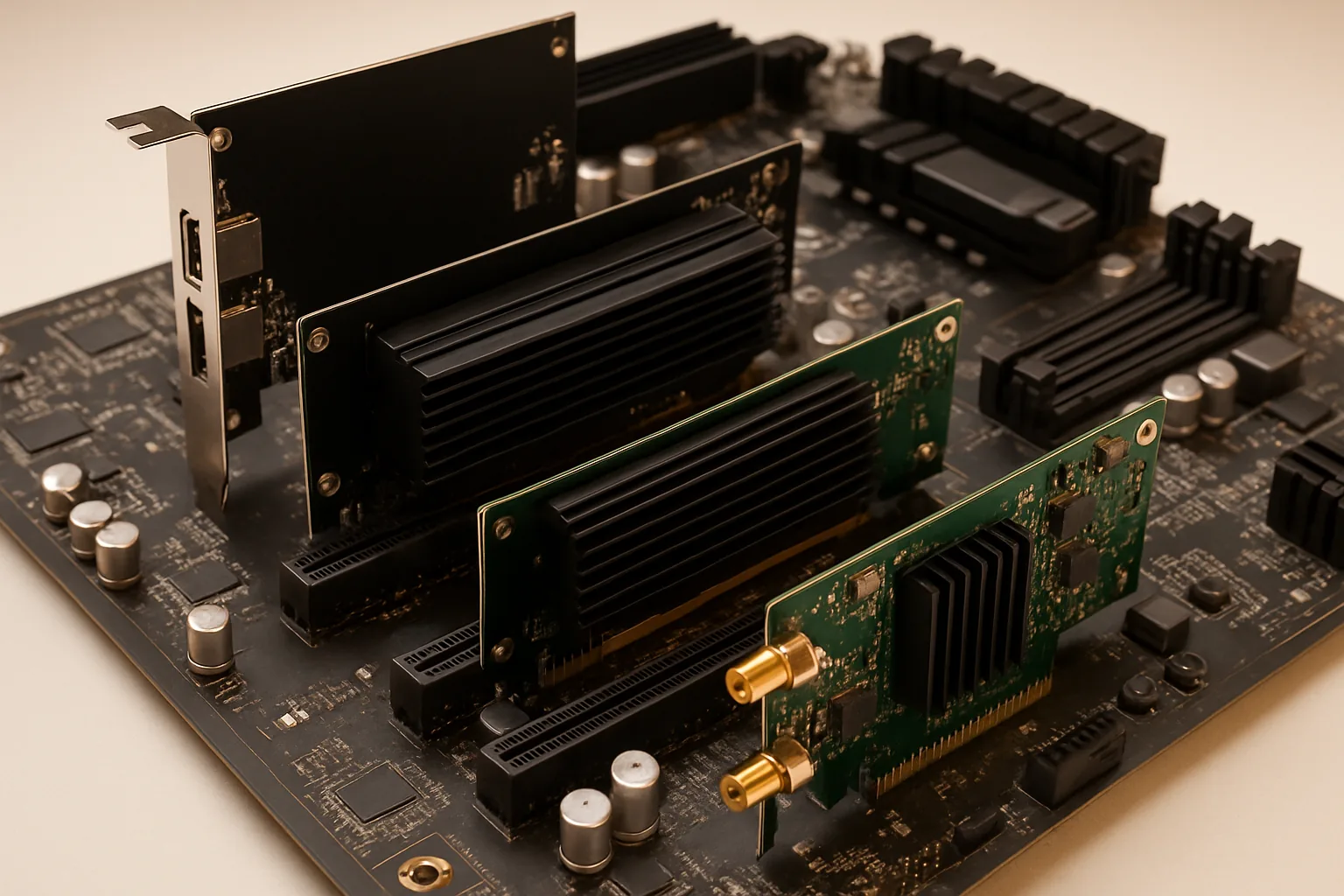

Walk into any computer shop in Turlock, and you’ll hear plenty of talk about graphics cards—they’re the celebrities of the PCIe world. But those same PCIe slots on your motherboard can hold dozens of other types of expansion cards that don’t render a single frame of video. From storage accelerators to professional audio interfaces, these lesser-known PCIe cards that aren’t graphics cards can transform your desktop into a powerhouse for music production, video editing, networking, or data-intensive work.
What Makes PCIe Slots So Versatile
PCIe stands for Peripheral Component Interconnect Express, and it’s the high-speed highway that connects expansion cards to your motherboard. Unlike older standards like PCI or AGP, PCIe uses dedicated serial lanes that can transfer data at blazing speeds.
Modern motherboards typically offer PCIe slots in different physical sizes: x1, x4, x8, and x16. The number refers to how many lanes the slot provides, directly affecting bandwidth. A graphics card usually sits in an x16 slot for maximum throughput, but that same slot can physically accept many other PCIe cards.
Here’s what makes PCIe the universal standard: it’s hot-swappable in theory (though not always in practice), backward-compatible across generations, and flexible enough to serve PCIe cards of every kind, from tiny Wi-Fi cards to massive professional video capture devices.
NVMe SSD Adapter Cards: Storage at Light Speed
The most popular PCIe cards that aren’t graphics cards might be NVMe SSD adapters. These cards let you install one or more M.2 NVMe drives directly into a PCIe slot, delivering read speeds up to 7,000 MB/s on Gen4 drives.
Why choose a PCIe NVMe adapter over motherboard M.2 slots? Simple: your board might only have one or two M.2 slots, but you need more fast storage for video projects, game libraries, or virtual machines. These PCIe cards can hold two to four NVMe drives in a single x16 slot.
We install these regularly for Central Valley clients doing 4K video editing or running media servers—the performance difference versus SATA SSDs is dramatic. Boot times drop, project load times shrink, and large file transfers that used to take minutes finish in seconds.
- Speed champion.Gen4 NVMe drives hit 7,000 MB/s read speeds, roughly 14× faster than SATA SSDs and 140× faster than mechanical hard drives.
- Multi-drive capacity.Quality adapter cards support bifurcation, letting a single x16 slot run four NVMe drives simultaneously if your motherboard BIOS supports it.
- Cooling matters.Look for adapter cards with heatsinks or active cooling—NVMe drives throttle performance when they overheat during sustained writes.
Capture Cards: Bringing External Video Into Your PC
Content creators and streamers rely on capture cards to pull HDMI or SDI video signals from cameras, game consoles, or other computers into their editing or streaming rig. These PCIe cards that aren’t graphics cards do the opposite job: they ingest video rather than output it.
Professional capture PCIe cards from Blackmagic, Elgato, and AVerMedia offer features like 4K60 HDR passthrough, zero encoding latency, and multiple input channels. They offload video processing from your CPU, keeping streams smooth even during intense gaming or multi-camera productions.
We’ve helped several Turlock streamers and small production companies choose the right capture hardware. The performance jump from USB capture devices to internal PCIe cards is substantial—fewer dropped frames, lower latency, and the ability to capture higher bitrates for post-production color grading.
- Identify your inputsDecide whether you need HDMI, SDI, or both, and how many simultaneous sources you’ll capture—gaming setups often need two inputs for console and facecam.
- Check PCIe requirementsMost capture cards need at least a PCIe 3.0 x4 slot; verify your motherboard has an available slot that won’t share bandwidth with your graphics card.
- Install drivers firstDownload the manufacturer’s latest drivers and software before physically installing the card to avoid detection issues.
- Configure passthroughConnect your display chain correctly: source → capture card input → capture card output → monitor, ensuring passthrough settings match your display’s refresh rate and resolution.
Network Interface Cards: Connectivity Beyond Built-In
Motherboard Ethernet ports are fine for most users, but network interface cards (NICs) offer capabilities that integrated solutions can’t match. Multi-gigabit Ethernet, 10GbE for NAS connections, Wi-Fi 6E upgrades, and even dual-port configurations for network segmentation all come via PCIe cards.
Professional users running home labs, Plex servers, or virtualization hosts benefit enormously from dedicated NICs. They reduce CPU overhead, offer advanced features like Wake-on-LAN and VLAN tagging, and provide reliability that onboard networking sometimes lacks.
In Turlock’s residential areas where fiber internet is becoming more common, we’re seeing more clients upgrade to 2.5GbE or 5GbE network cards to fully utilize their gigabit-plus connections and eliminate bottlenecks when transferring files to network storage.
- Multi-gig home networking.2.5GbE and 5GbE cards cost $30–$80 and deliver full-speed file transfers to compatible NAS devices over existing Cat5e or Cat6 cabling.
- Wi-Fi 6E desktop upgrade.Wi-Fi 6E PCIe cards with 6GHz support and external antennas often outperform motherboard Wi-Fi, especially in signal-challenged rooms.
- Dedicated server NICs.Intel and Broadcom server-grade NICs offer features like SR-IOV for virtualization, hardware offloading, and proven stability for always-on systems.
Professional Audio Interfaces: Studio-Grade Sound Production
Musicians, podcasters, and audio engineers often choose PCIe audio interfaces over USB alternatives for one critical reason: lower latency. When you’re recording vocals or playing virtual instruments, every millisecond between hitting a key and hearing the sound matters.
PCIe audio cards from RME, Universal Audio, and Focusrite offer sub-2ms round-trip latency, dedicated DSP processors for effects chains, and pristine analog-to-digital conversion. They’re overkill for gaming or casual music listening but essential for serious production work.
These PCIe cards typically include breakout boxes or external interfaces connected via proprietary cables, giving you multiple mic preamps, instrument inputs, and studio monitor outputs. The PCIe connection handles the heavy data lifting while keeping CPU usage minimal.
- Ultra-low latency recording.PCIe audio interfaces achieve 1–2ms round-trip latency at 96kHz sample rates, compared to 10–15ms for typical USB interfaces.
- Onboard DSP processing.High-end cards include dedicated processors that run effects and amp simulations without taxing your CPU during recording sessions.
- Rock-solid stability.Direct PCIe connection eliminates USB bus contention issues that can cause clicks, pops, or dropouts during critical recording passes.
Our services include PCIe audio interface installation and driver optimization for Central Valley musicians and content creators who need professional-grade recording capabilities without the stability headaches.
Specialized PCIe Cards for Niche Workflows
Beyond the common categories, dozens of specialized PCIe cards serve specific professional needs. Video editors use hardware encoding cards to accelerate H.264 and H.265 export. Security professionals install multi-port serial cards for legacy equipment. Scientists add GPGPU compute cards for simulations.
USB 3.2 Gen2 PCIe cards add high-speed ports when motherboard headers are exhausted. Thunderbolt add-in cards bring 40Gbps connectivity to desktops. RAID controllers with battery-backed cache protect critical data. FPGA development boards, SDR (software-defined radio) cards, and industrial I/O interfaces all occupy PCIe slots for specialized tasks.
Even RGB controller cards exist for enthusiasts who want to manage dozens of lighting zones without CPU overhead. The PCIe ecosystem is astonishingly diverse—if a task needs high bandwidth and low latency, there’s probably a card for it.
Installing PCIe Cards: What to Know
Installing PCIe cards that aren’t graphics cards follows the same basic process as GPU installation, but with some important considerations. Slot selection matters—using a lower x16 slot might run at x8 or x4 speeds depending on your CPU and motherboard chipset.
Always shut down completely and unplug your system before installation. Remove the appropriate rear slot covers, align the card’s edge connector with the slot, and apply firm, even pressure until the retention clip clicks. Secure the bracket with screws to prevent GPU-sag-style stress on the slot.
Driver installation order varies between PCIe cards. Network and storage cards usually work with Windows generic drivers initially, but you’ll want manufacturer drivers for full features. Audio and capture cards absolutely require manufacturer drivers installed before first boot for proper detection.
- Power down properlyShut down Windows completely, flip the PSU switch, and press the power button to discharge capacitors before opening the case.
- Choose the right slotConsult your motherboard manual to identify which slots run at which speeds and whether any share bandwidth with M.2 or SATA connections.
- Handle cards carefullyTouch a grounded metal surface first, hold cards by the edges, and avoid touching gold contacts or surface-mount components.
- Secure and connectEnsure the retention clip engages, bracket screws are tight, and any required PCIe power connectors or internal cables are properly attached.
- Install drivers properlyBoot into Windows, install manufacturer drivers and utilities, then restart before connecting peripherals or configuring the card.
MB/s NVMe speed
PCIe audio latency
Typical PCIe slots
Latest PCIe standard
Frequently asked questions
Can I use a PCIe x1 card in an x16 slot?
Yes, absolutely. PCIe slots are backward-compatible both ways—you can install smaller cards in larger slots without any issues. The card will run at its native speed (x1, x4, etc.) regardless of the physical slot size. Just make sure the slot isn’t shared with other resources your system needs. Many users install Wi-Fi or USB PCIe cards in unused x16 slots simply because they’re available and accessible.
Do PCIe cards work in any generation slot?
Yes, PCIe maintains backward and forward compatibility across generations. A PCIe Gen 4 NVMe adapter will work in a Gen 3 slot, just at Gen 3 speeds. Similarly, older Gen 2 cards work fine in newer Gen 4 slots. The system negotiates the fastest mutually supported speed. The main consideration is bandwidth—if you’re using a high-performance card like a 10GbE network adapter or multi-NVMe carrier, you’ll want at least a Gen 3 slot to avoid bottlenecks.
Will adding PCIe cards slow down my graphics card?
It depends on your motherboard and CPU. Most modern systems provide dedicated lanes directly from the CPU to the primary x16 slot, so those remain unaffected. However, additional slots often share bandwidth with each other or with M.2 sockets through the chipset. Check your motherboard manual’s PCIe lane diagram—some boards drop the primary slot from x16 to x8 when certain other slots are populated. For gaming, x8 Gen 3 is still plenty fast and causes no noticeable performance loss on current GPUs.
Can I install PCIe cards in a laptop?
Not directly—laptops don’t have accessible PCIe slots. However, some gaming laptops and mobile workstations include M.2 slots that can accept specialized adapter cards for things like additional SSDs or Wi-Fi upgrades. A few high-end laptops also support external GPU enclosures via Thunderbolt, which use PCIe signaling over the Thunderbolt cable. For most expansion needs on laptops, USB-based solutions are the practical alternative, though they won’t match the performance of internal PCIe cards.
Need Help Choosing or Installing PCIe Cards?
Whether you're upgrading storage, adding professional audio, or boosting network speed, we'll help you select compatible hardware and handle the installation. Stop by our shop at 2101 Geer Rd Suite 101 in Turlock, call (209) 661-9171, or book your appointment online—walk-ins welcome Monday through Saturday, 9 AM to 6 PM.
Bottom line: Your desktop’s PCIe slots can do far more than hold graphics cards—from lightning-fast NVMe storage to professional capture devices, these PCIe cards that aren’t graphics cards unlock capabilities your motherboard never included.

Local, walk-in computer repair at Turlock Professional Park. Tune-ups, SSD upgrades, virus removal and cleanings for laptops, desktops, Macs and gaming PCs — most fixed the same day. (209) 661-9171