Tech Tips From The Bench · Accessories & Upgrades
No SD Card Slot? 5 USB-C Adapter Solutions for Laptops
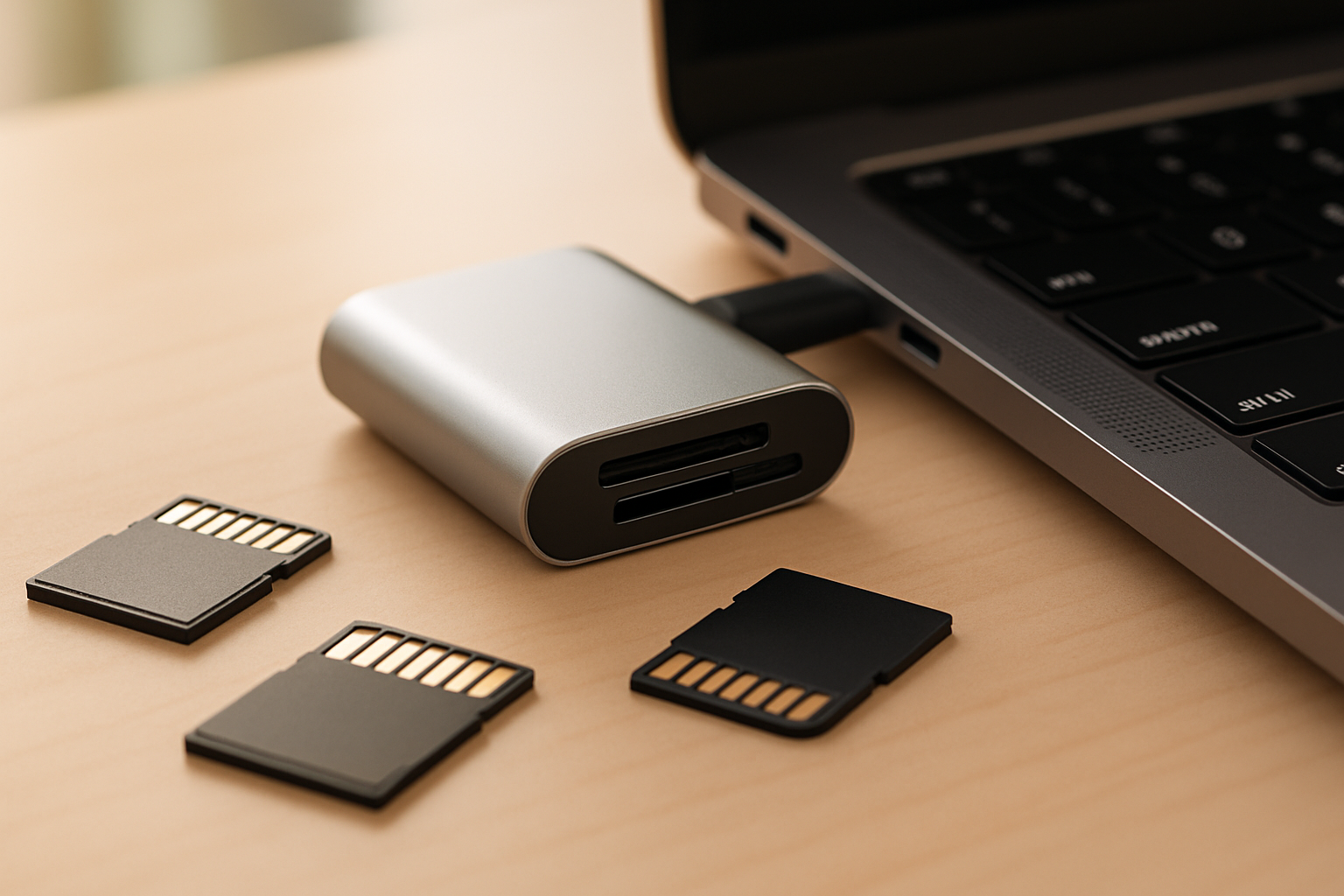

If you’ve recently bought a new laptop in Turlock and discovered it’s missing an SD card slot, you’re not alone. Manufacturers have been steadily removing built-in card readers to make laptops thinner and lighter. The good news? A simple USB-C adapter for SD cards solves the problem for about $10–$30, and choosing the right one takes just a few minutes.
Why Laptop SD Card Slots Disappeared
Over the past five years, laptop makers have prioritized thin designs and versatility over dedicated ports. SD card slots occupy valuable internal space, and with USB-C ports becoming universal, manufacturers assume users will buy their own adapters when needed.
This shift hits photographers, videographers, and anyone transferring files from cameras, drones, or older devices particularly hard. Instead of a quick plug-and-play experience, you now need to carry an extra dongle.
The upside? USB-C card readers often deliver faster transfer speeds than older built-in slots, especially if your laptop supports USB 3.1 Gen 2 or Thunderbolt. For many users in Turlock working with large photo libraries or 4K video, this speed boost makes the inconvenience worthwhile.
How to Choose the Right Card Reader
Not all USB-C card readers are created equal. The market is flooded with options ranging from bargain-bin models to professional-grade hubs, and knowing what matters helps you avoid wasting money on a reader that won’t meet your needs.
Here are the key factors to consider when shopping for a USB-C adapter for SD cards:
- Transfer speed rating.Look for UHS-II support if you work with high-resolution photos or video; basic UHS-I readers max out around 104 MB/s, while UHS-II can hit 312 MB/s. Your actual speed depends on both the reader and your SD card’s rating.
- Dual-slot convenience.Many readers include both SD and microSD slots, eliminating the need for a separate adapter for your phone’s memory card or action camera footage.
- Build quality matters.Metal housings dissipate heat better than plastic and survive the daily abuse of tossing into a laptop bag. We see far fewer failures with aluminum-bodied readers at our Turlock shop.
- Cable length consideration.Fixed low-profile adapters work great for stationary desk use, but a short cable (3–6 inches) gives you flexibility when ports are crowded or positioned awkwardly on your laptop.
Brand reputation also plays a role. Anker, Ugreen, and SanDisk consistently produce reliable readers, while ultra-cheap no-name brands from overseas marketplaces often fail within months or corrupt data during transfers.
Five Excellent USB-C Card Reader Options
Based on reliability, performance, and value, here are five card readers we regularly recommend to customers at our Geer Road location in Turlock:
- Anker 2-in-1 USB-C Card Reader ($10–$15).The budget favorite with SD and microSD slots, UHS-I speeds, and Anker’s solid warranty. Perfect for casual users transferring vacation photos or documents.
- Ugreen USB-C SD Card Reader ($18–$25).Aluminum construction, UHS-II support for faster transfers, and a compact low-profile design. Great middle-ground option for enthusiast photographers.
- SanDisk Extreme PRO UHS-II Reader ($25–$40).Professional-grade performance with transfer speeds up to 300 MB/s, built like a tank, ideal for video editors and working pros who can’t afford data corruption.
- Kingston Nucleum USB-C Hub ($50–$70).Not just a card reader—adds HDMI, USB-A ports, and power delivery passthrough. Best for users who need multiple ports restored on thin laptops.
- ProGrade Digital UHS-II Reader ($30–$45).Specifically designed for photographers with dual UHS-II SD slots for simultaneous transfers, LED activity indicators, and exceptional durability.
All of these are available through major online retailers with delivery to Turlock, or you can often find Anker and SanDisk models at local stores. We don’t sell adapters at our shop, but we’re happy to help you choose the right one during a consultation.
Setting Up Your New Card Reader
The beauty of modern USB-C card readers is their simplicity. Unlike older devices that required driver installations, today’s readers work immediately through plug-and-play technology built into Windows, macOS, and Linux.
Here’s how to get started with your new USB-C adapter for SD cards:
- Insert your SD cardInsert the card into the reader’s slot with the metal contacts facing down and the notched corner aligned correctly. You should feel a slight click when fully seated.
- Connect to your laptopPlug the reader’s USB-C connector into an available port on your laptop. Use a port directly on the laptop rather than through another hub for best performance.
- Wait for recognitionYour operating system should detect the card within 2–5 seconds. Windows users will see a notification; Mac users will see the card appear on the desktop or in Finder.
- Access your filesOpen File Explorer (Windows) or Finder (Mac) and navigate to the SD card, which appears as a removable drive. You can now copy, move, or open files normally.
- Safely eject when doneAlways use the “Safely Remove Hardware” option (Windows) or eject button (Mac) before unplugging to prevent data corruption. Wait for confirmation before removing the card.
If your card doesn’t appear immediately, try a different USB-C port—some laptops have ports optimized for charging rather than data. Restarting your computer with the reader connected can also resolve detection issues.
Common Card Reader Problems & Fixes
Even reliable card readers occasionally run into issues. Here are the problems we see most often at our Turlock repair shop and how to solve them yourself before bringing your laptop in.
- Card not detected at all.First, test the SD card in another device (camera, another computer) to rule out card failure. Clean the card’s metal contacts with a soft cloth and try again. If still unrecognized, test a different SD card in the reader to isolate whether the card or reader has failed.
- Slow transfer speeds.Verify you’re using a UHS-I or UHS-II rated card with a compatible reader—old Class 10 cards are significantly slower. Close background applications that might be accessing the drive, and connect directly to the laptop rather than through a hub.
- Files appear corrupted.This often indicates the card was removed without proper ejection. Run Windows CHKDSK or Mac Disk Utility First Aid on the card. If corruption persists across multiple cards, replace the reader—it may be faulty.
- Reader gets extremely hot.Some heat during large transfers is normal, but excessive temperature suggests a problem. Disconnect immediately and try a different USB-C port with better airflow. Persistent overheating means the reader should be replaced.
If you’ve tried these steps and still experience problems, the issue might be with your laptop’s USB-C controller or drivers rather than the adapter itself. Our team can diagnose hardware versus accessory problems quickly—you can book a repair appointment online or call us during business hours.
Going Beyond Basic Card Reading
Once you’ve experienced the convenience of a USB-C card reader, you might discover additional use cases beyond simple photo transfers. These adapters are surprisingly versatile tools for expanding your laptop’s capabilities.
Consider these creative applications we’ve seen customers implement successfully:
- Portable backup solution.High-capacity SD cards (256GB–1TB) work as affordable, pocketable backup drives for critical documents. They’re more durable than thumb drives and just as convenient with a reader.
- Expanding laptop storage.Some users leave a large SD card permanently in a low-profile reader to add storage for files that don’t need SSD speeds—music libraries, archived photos, or reference documents.
- Air-gapped file transfers.For security-conscious users or those working with sensitive data, SD cards via reader provide a physical way to move files between isolated systems without network exposure.
- Raspberry Pi and IoT projects.Tech hobbyists around Turlock use their laptop card readers to write operating system images to microSD cards for single-board computers and embedded projects.
The USB-C standard’s versatility means your card reader investment pays dividends across multiple devices. The same adapter works with tablets, some smartphones, and newer desktop computers, making it a genuinely portable tool worth carrying in your bag.
UHS-II max speed
Reader price range
Card detection time
Max SD card size
Frequently asked questions
Will any USB-C card reader work with my MacBook or Windows laptop?
Nearly all modern USB-C card readers are cross-platform compatible with both Windows and macOS through built-in drivers, requiring no software installation. The key is ensuring your laptop’s USB-C port supports data transfer, not just charging—most do, but some budget models have charge-only ports. If you’re unsure about your specific laptop model, our team in Turlock can verify compatibility in minutes at no charge.
What's the difference between UHS-I and UHS-II card readers, and does it matter?
UHS-I readers max out around 104 MB/s transfer speed, while UHS-II can reach 312 MB/s—a significant difference when moving large photo or video files. However, you only benefit from UHS-II speeds if both your SD card AND reader support the standard. For casual users transferring occasional photos, a UHS-I reader saves money with minimal real-world speed impact. Professionals working with RAW photos or 4K video should invest in UHS-II for noticeably faster workflows.
My SD card works in my camera but won't show up in the USB-C reader—what's wrong?
This typically indicates either a dirty card contact, incompatible formatting, or a failing reader. First, clean the SD card’s metal contacts with a soft, dry cloth and ensure it’s properly seated in the reader with a firm click. Try the card in another computer or reader if available. If the card works elsewhere but not in your specific reader, the reader may be defective and should be replaced. Some older or specialized card formats also aren’t compatible with all readers—bring it by our Geer Road location and we’ll test it for you.
Can I leave a card reader permanently plugged into my laptop without causing problems?
Yes, leaving a USB-C card reader connected won’t harm your laptop, though it does occupy a port you might need for other accessories. Low-profile readers designed to sit flush work best for semi-permanent installation. The reader draws minimal power when idle, so battery impact is negligible. Just remember to safely eject any inserted SD card before unplugging to prevent file corruption, and periodically unplug the reader to clean both the connector and your laptop’s port of accumulated dust.
Questions About Laptop Accessories or Upgrades?
Our Turlock team helps customers choose compatible accessories, diagnose USB-C port issues, and upgrade laptops daily. Stop by our Geer Road location for honest advice—walk-ins welcome Mon–Sat 9 AM – 6 PM, or call (209) 661-9171 to discuss your specific setup.
Bottom line: A quality USB-C adapter for SD cards restores missing functionality to modern laptops for minimal cost, often with better performance than the built-in readers manufacturers removed.

Local, walk-in computer repair at Turlock Professional Park. Tune-ups, SSD upgrades, virus removal and cleanings for laptops, desktops, Macs and gaming PCs — most fixed the same day. (209) 661-9171